If GA4 is not tracking your Shopify purchases, the cause is almost always one of five things: the purchase event never fires, it fires from two places at once, a consent banner or browser blocks it, the order ID is blank or repeated, or the values are built wrong. You can find which one in about 20 minutes with the audit below, and you do not need a developer for most of the fixes.
Here is how it usually shows up. Shopify says you took 63 orders last week. GA4 says 41. You open your Meta and Google Ads reports and they disagree with both. So you spend a Sunday arguing with a spreadsheet, and on Monday you make a budget decision on numbers you do not trust. That is the expensive part. Missing purchases do not just make a report look wrong. They starve your ad platforms of the conversion signal they use to find your next customer.
This guide is the order we work through with Aussie stores. It starts with measuring the gap properly, then goes cause by cause, then gives you a copy-and-paste reconciliation template. If you have not set GA4 up from scratch yet, start with our guide to setting up GA4 on Shopify so you can trust the data, then come back here to fix what is broken.
Step 1: Measure the gap before you fix anything
Most owners start fixing before they know how big the problem is. That is how you end up rebuilding a tracking setup that was only 8% out. Do the reconciliation first.
- Pick a clean 7-day window that ended at least two days ago. Craftshift notes that GA4 events can take 24 to 48 hours to show up fully in reports, so yesterday is never a fair comparison.
- Pull Shopify orders for that window from Orders in your admin. Exclude cancelled, test and draft orders so you are counting real paid orders.
- Pull GA4 transactions for the same dates from Reports, then Monetisation, then Ecommerce purchases. Check the metric is Transactions, not Purchases the event count, because a duplicated event inflates the second one.
- Match the time zone. Shopify reports in your store time zone. If your GA4 property is still on a US default, orders placed after 5pm AEDT land on a different day. Set both to your Australian time zone.
- Work out the gap: (Shopify orders minus GA4 transactions) divided by Shopify orders.
Now read the result against these working thresholds. They are the rules of thumb we use with members, built from the ranges the tracking vendors publish rather than from any official Google benchmark.
| Gap | What it usually means | What to do |
|---|---|---|
| Under 10% | Healthy. Analyzify, a Shopify analytics app vendor, says well-configured setups commonly align in the 95% to 98% range. | Leave it. Reconcile monthly. |
| 10% to 25% | Normal browser loss. Craftshift, a Shopify tracking agency, puts the typical GA4 under-report at 10% to 25%. | Fix consent and consider server-side if you spend heavily on ads. |
| 25% to 50% | Something is broken, or two things are. | Work through causes 1 to 4 below. |
| Over 50%, or zero | The purchase event is not firing at all. | Start at cause 1 and cause 2. |
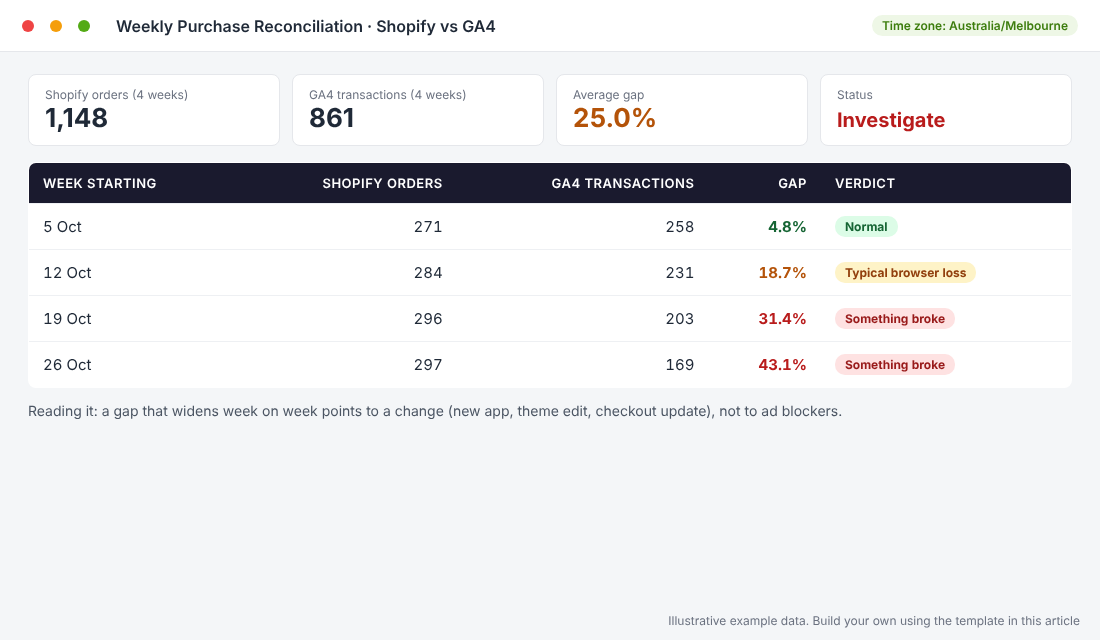
Look at the shape of the gap, not just the size. A steady 15% gap is browser loss. A gap that was 5% three weeks ago and is 43% now means something changed. Check what you installed, edited or updated in the week it started.
If your numbers are off in ways that a missing event does not explain, our Shopify revenue reconciliation audit covers the finance side of the same problem.
Cause 1: Two installs fighting each other, or none at all
Shopify gives you at least four ways to send a purchase to GA4. The Google and YouTube app, a custom pixel in Customer events, a Google Tag Manager container pasted into the theme, and a third-party tracking app. Stores we audit often have two or three of them running, usually because a past agency added one and nobody removed the last.
The result is either double counting (the same order appears twice with the same ID, or twice with different IDs) or silence (the one install that worked got removed during a theme change). Stape, a server-side tagging vendor, puts the rule simply: choose one source for each event and send each purchase to GA4 only once.
How to check in five minutes
- Customer events: in Shopify admin go to Settings, then Customer events. List every pixel connected. Write down which ones mention Google, GA4 or GTM.
- Apps: open Settings, then Apps and sales channels. Look for the Google and YouTube channel, plus any tracking or attribution app.
- Theme code: in Online Store, then Themes, then Edit code, search the theme for gtag( and GTM-. Any hit is a separate install.
- Pick one winner for purchase events and switch the rest off, or at minimum stop them sending purchase.
For most small and mid-sized Aussie stores, the native Google and YouTube channel is enough. Craftshift’s 2026 setup guide says to skip Google Tag Manager unless you have a specific reason, because the native channel covers the standard ecommerce events. Reach for GTM when you need custom tracking the channel does not give you.
Cause 2: The purchase event is tied to the wrong trigger
GA4 needs a purchase event with the order details attached. On Shopify, that event comes from Shopify’s checkout_completed event. Shopify’s own Google Tag Manager tutorial maps checkout_completed to the GA4 purchase event, product_viewed to view_item and cart_viewed to view_cart.
It goes wrong in three common ways.
- Old thank-you page scripts. Scripts pasted into legacy checkout areas depend on the customer reaching the confirmation page. Shopify’s tutorial notes that checkout.liquid is not compatible with its extension framework, so anything built on the old checkout needs to move to Customer events.
- An event name mismatch in GTM. If you use a custom pixel feeding Tag Manager, the trigger is a custom event whose name must match the event key in the pixel exactly. checkout_completed and checkout-completed are two different events, and the second one never fires.
- Customers who never reach the confirmation page. Analyzify points out that reliance on the thank-you page fails when customers close the tab or when gateways redirect early.
That last one matters more in Australia than most owners realise, because so many local shoppers pay with PayPal, Afterpay, Zip or Shop Pay. Each hands the customer off to another domain and back. If your purchase tracking waits for the customer to land back on your store, every one of those orders is a coin toss.
The fix
Use the checkout_completed event from Customer events rather than a page-based script, since it is built for Shopify’s current checkout. If you still lose a chunk of orders after that, the next layer is sending the purchase from Shopify’s servers to GA4, which we cover under the server-side section below.
Cause 3: Consent banners, ad blockers and Safari
Some missing purchases are never coming back, and the aim is to shrink that number, not eliminate it. Three things stop the browser from reporting a sale.
- Ad blockers. Craftshift’s guide says browser-based tracking loses 5% to 30% of events to ad blockers, Safari’s tracking prevention and consent banners, and that 8% to 15% of users block GA4 events. Those are agency estimates, not Google figures, so treat them as a range. The only Australian survey I could find is old: IAB Australia’s 2017 research of 1,659 online Australians found 25% used an ad blocker. Use it as a signal of direction, not a current number.
- Safari. StatCounter has Safari at 32.45% of Australian browser traffic across desktop, mobile and tablet for September 2026, second only to Chrome at 50.27%. Safari limits cookie lifetimes, which breaks the link between the person who clicked your ad and the person who bought three days later. Roughly one in three of your Aussie visitors is in that environment.
- Consent banners. Most Aussie stores do not run one, because there is no general cookie banner law here like the EU’s. But if you sell into the UK or EU and show a banner, a declined consent can stop tags or strip identifiers. Analyzify notes that under Consent Mode v2, GA4 may lose the client ID and region, so purchases can show up as direct or unassigned.
What to do about it
- If you run a banner, connect it to Shopify’s Customer Privacy API and set up Google Consent Mode v2, so GA4 receives a proper consent signal instead of silence.
- Do not chase 100%. If you are inside the 10% to 25% band, the browser loss is normal and the fix is a server-side layer, not a rebuild.
- Use the numbers for direction. Even with a gap, a stable gap means trends are still readable. Our guide to server-side tracking for broken analytics explains the next step.
Cause 4: Blank or repeated transaction IDs
This is the quiet one. It does not show up as zero purchases. It shows up as far fewer purchases than you expect, with revenue that looks oddly lumpy.
Google’s documentation is clear on the rule: GA4 treats purchase events that share a transaction ID as duplicates and counts them once. Two details turn that rule into a problem. If your tag sends the same ID for different orders, Google warns you could significantly undercount your key events. And an empty value counts as an ID: GA4 will deduplicate every purchase sent with transaction_id set to an empty string, so every order with a blank ID collapses into a single purchase.
How to spot it
- In GA4, open Explore and build a free-form report with Transaction ID as the row and Transactions as the value.
- Look for (not set) as an ID, or one ID carrying a large number of transactions.
- Compare 10 recent Shopify order numbers to the IDs GA4 holds. They should match one for one.
The fix is to send the Shopify order number or order ID as the transaction_id, generated fresh for every order. The IDs must be dynamic, unique per order and must not contain information that identifies a customer. Google adds that deduplication only works for web streams, not app streams.
Cause 5: The count is right but the revenue is wrong
Sometimes GA4 sees every order and the dollars still do not match. That is a values problem, and in Australia it is usually one of these.
- GST, shipping and discounts. Check what your GA4 value includes. Is it before or after GST? Does it include shipping? Does it use the discounted price? Then compare it to the matching Shopify figure, not the nearest one.
- Currency. Stape’s guidance is to send the currency separately as a three-letter code, and to send value, tax, shipping and discount as plain numbers. If you sell in AUD and NZD, check both are tagged properly.
- Refunds. GA4 does not know about a refund unless you tell it. Shopify records them, GA4 usually does not, so GA4 revenue runs higher over time.
- Time zone. A property on the wrong time zone shifts late-evening orders into the next day, which makes daily comparisons look off even when the weekly total is fine.
If you are running Google Ads, this is also the moment to look at enhanced conversions for Shopify, which sends hashed customer details alongside the purchase so Google can match more conversions to ads.
The tool walk-through: GA4 DebugView and Shopify Pixel Helper
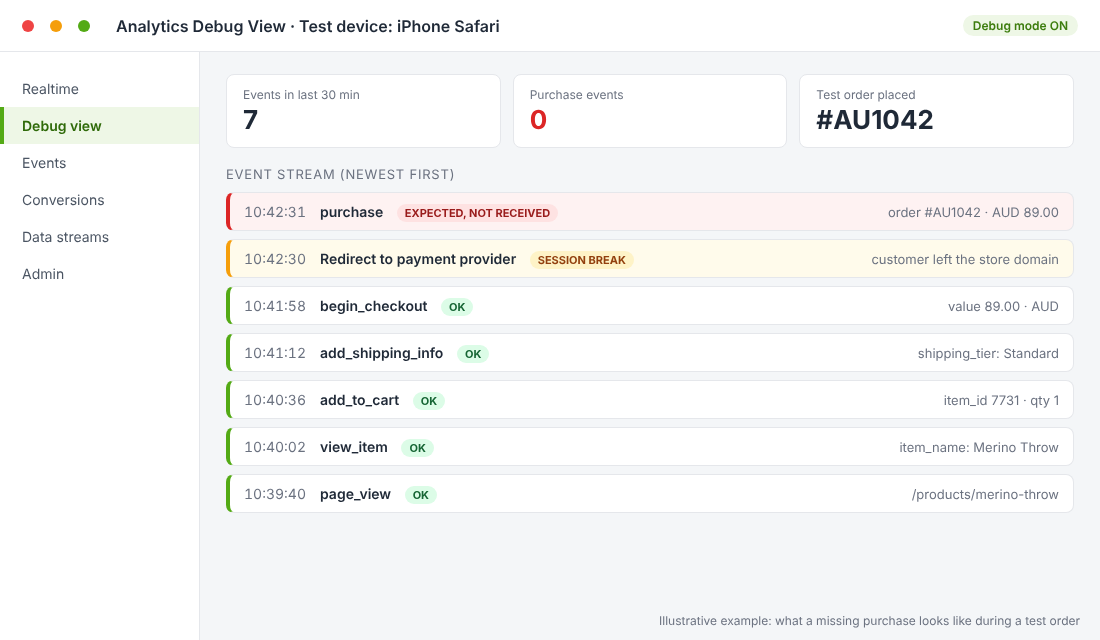
You can diagnose everything above with two free tools. DebugView in GA4 shows you the events your browser is sending in real time. Shopify Pixel Helper shows you what Shopify’s pixels are firing. One catch from Shopify’s own documentation: Google Tag Assistant’s troubleshoot feature is not compatible with custom pixels, so use Pixel Helper for those.
Setup steps
- Install the Shopify Pixel Helper extension in Chrome.
- In GA4, go to Admin, then DebugView. Open your store in a fresh browser session with debug mode switched on.
- Add a low-priced product to cart and go through checkout using your normal payment method. Use your real gateway, not just a card, because a redirect is where the session often breaks.
- Watch both tools. You should see page_view, view_item, add_to_cart, begin_checkout and then a purchase event with value, currency and transaction_id.
- Repeat on an iPhone in Safari and once with PayPal or Afterpay. If purchase appears on one and not another, you have found your leak.
- Refund the test order, and note the order number so you can find it in your reconciliation.
Stape adds a few test cases worth running before you trust the data: discount codes, free products, multiple currencies, partial refunds and repeat visits. Remove storefront password protection first or the tests will not behave like a real customer.
The 5-Step GA4 Purchase Audit (copy this)
Here is the whole process on one page. Run it once now, then monthly. It takes under an hour the first time and about ten minutes after that.
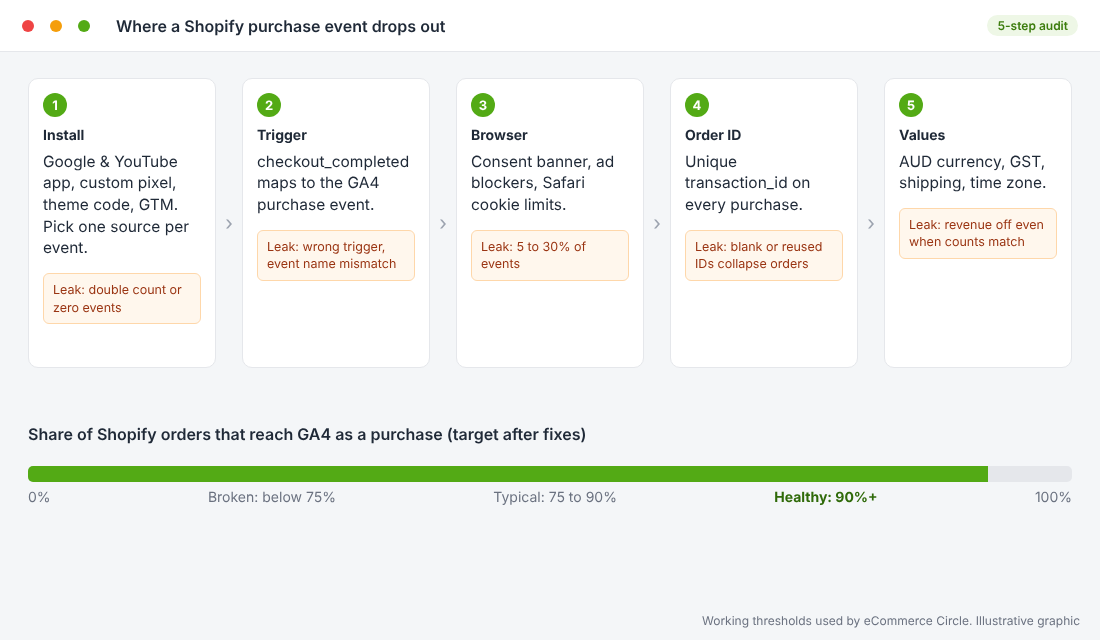
- Install: list every GA4 or GTM install. Keep one purchase source. Remove the rest.
- Trigger: confirm purchase comes from checkout_completed and the event names match.
- Browser: test in Safari and through your payment redirects. Fix consent signals if you run a banner.
- Order ID: check Transaction ID in Explore for blanks and repeats.
- Values: confirm currency, GST, shipping, discounts and time zone.
Then keep this reconciliation table somewhere you will see it. Paste the last four weeks in, and the thresholds above tell you whether to act.
| Week starting | Shopify orders | GA4 transactions | Gap % | Action |
|---|---|---|---|---|
| (date) | (from Orders) | (from Ecommerce purchases) | (Shopify minus GA4, divided by Shopify) | Under 10%: none. 10 to 25%: consider server-side. Over 25%: run the audit. |
When to go server-side (and when not to)
Server-side tracking sends the purchase from Shopify’s backend to GA4 once the order is confirmed, rather than depending on the customer’s browser. Analyzify recommends a hybrid of client-side and server-side events, with the Measurement Protocol sending the purchase after the order is confirmed instead of waiting on the thank-you page.
The vendors in this space are real and worth knowing by name: Elevar, Littledata and Stape all offer Shopify-focused server-side options, with different levels of hand-holding and cost. I have not tested all three against the same store, so look at their current pricing yourself.
Here is the decision rule. Craftshift recommends server-side via the Measurement Protocol for stores spending around US$20,000 a month on paid ads, and advises skipping it for stores under US$500,000 a year in revenue or with little paid advertising. Those are US dollar figures from one agency, so read them as a rough guide. In plain terms:
- Spending under a few thousand a month on ads: fix causes 1 to 5, accept a 10% to 20% gap, and move on.
- Spending heavily on Meta and Google, with a gap over 20% after the audit: a server-side layer pays for itself because the ad platforms see more of your conversions.
- Selling into the UK or EU with a consent banner: server-side plus Consent Mode v2 is worth doing sooner.
Stape’s own article warns that server-side Google Tag Manager is not a one-click job and often leaves gaps in attribution or product data. Budget for testing time either way.
What fixing this does to the rest of your business
Clean purchase data is not a reporting nicety. It feeds everything downstream, and the effects stack.
Google and Meta both optimise toward the conversions they can see. When 30% of your orders go missing, the algorithm learns from a skewed sample and bids accordingly. Fixing the signal tends to help campaigns that look like they are underperforming. It also makes your attribution settings meaningful, which is why we pair this with our guide to Meta ads attribution settings, and it lets you trust blended metrics like marketing efficiency ratio instead of platform ROAS.
Timing matters. Black Friday is 27 November 2026, and any budget call you make in the final two weeks will rest on whatever your data says. Run the audit by early November so you have a clean fortnight of numbers before the sale. If you want the wider checklist for what else to verify, our tracking pixel audit covers the pixels beyond GA4.
Quick answers
Why is GA4 showing fewer purchases than Shopify?
Because GA4 only records what the browser sends, and Shopify records every confirmed order. A gap of 10% to 25% is common. A bigger gap means a fault: a duplicate install, a wrong trigger, missing transaction IDs or a payment redirect that breaks the session.
How long does it take for GA4 purchases to show up?
Events can appear in Realtime and DebugView within seconds, but standard reports can take 24 to 48 hours to populate fully, according to Craftshift. Never judge the fix on today’s numbers.
Should I use the Google and YouTube app or Google Tag Manager?
For most stores, the native Google and YouTube channel is enough. Add Tag Manager only when you need custom tracking the channel does not cover, and never run both for the same purchase event.
Inside eCommerce Circle, measurement is one of the core pillars we work on with every member, because you cannot scale what you cannot read. If you want to see exactly where your store is being capped, take the free More Orders Scorecard. It takes two minutes and shows you which of the 10 P’s to fix first.