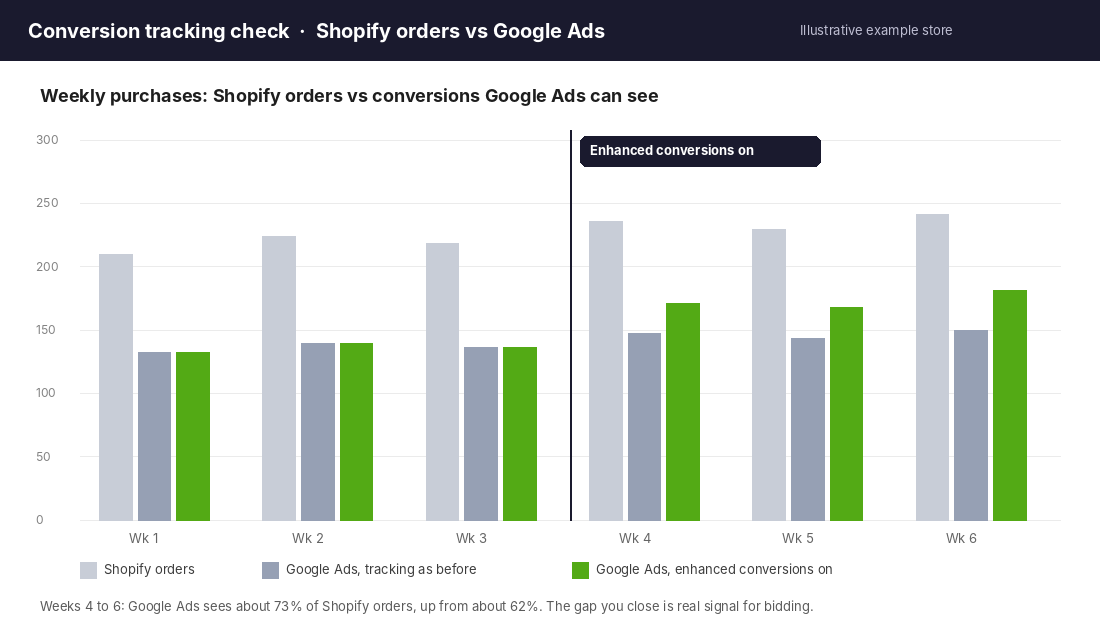
Most Shopify stores run Google Ads against a conversion count that is quietly wrong. Shopify shows 240 orders for the week. Google Ads reports 150. Smart Bidding then optimises toward the 150 it can see, and treats the other 90 sales as if they never happened.
What’s in This Article
That gap is not a bug you can fix with a new pixel. It is what happens when browsers throw away cookies, shoppers hop between phone and laptop, and Google cannot connect the ad click to the purchase. Enhanced conversions for Shopify is the fix Google built for exactly this problem, and for most stores it is a 15-minute job. This guide walks through what it does, how to switch it on, how to check it works, and the Australian privacy points you need to get right.
One honest note before we start. Enhanced conversions will not double your sales, and anyone promising that is selling something. What it does is give Google more of the real conversions to learn from. Better data in means better bids out. That is worth a lot when your Google Ads budget is the biggest line in your marketing spend.
What Enhanced Conversions Actually Does (in Plain English)
Normally Google Ads counts a sale when a cookie set at the ad click matches a tag firing on your thank-you page. If that cookie is gone, blocked or sitting on a different device, the sale goes unattributed.
With enhanced conversions, your store also sends the customer’s details from the order, usually their email address and sometimes phone and delivery address. Those details are hashed before they leave your site. Google describes the hashing as a one-way algorithm called SHA256. Google then compares the hashed details against signed-in Google accounts that clicked or viewed your ads. When there is a match, the conversion is credited to the ad.
Three things worth being clear on:
- It supplements your existing tracking. Your normal Google tag keeps firing. Enhanced conversions adds a second route to the same answer.
- It only helps when the customer was signed in to Google. No signed-in match, no recovered conversion.
- It does not recover a lost event. It improves matching on events that fired. If your purchase tag is broken, fix that first (the Shopify tracking pixel audit covers the checks).
Why Aussie Stores Lose So Much Signal
Australia is a Safari country. StatCounter’s September 2026 figures put Safari at 50.01% of Australian mobile browsing, ahead of Chrome at 42.1%. Safari limits how long tracking cookies live, which is why a shopper who clicks your ad on Monday and buys on Saturday often arrives with no usable trail.
Add the usual Australian buying pattern. Someone sees your ad on their phone on the train, then buys on a work laptop at lunch, often through Afterpay or Shop Pay. Different device, different browser, no cookie. The order still lands in Shopify. Google never hears about it.
Here is the part most owners miss. Google Ads is not just reporting. Smart Bidding, Performance Max and Shopping campaigns all learn from the conversions they can see. If 35% to 40% of your sales are invisible, the algorithm is working from a thinner and biased sample of your customers. If you want to compare what each platform claims against what Shopify banked, the revenue reconciliation audit shows how to do it properly.
What Results to Expect (Real Numbers, Not Hype)
Google publishes one retail case study for enhanced conversions. UK fashion retailer MandM Direct reported 3% more conversions on Search and 20% more on YouTube from enhanced conversions. Google adds that actual results vary by advertiser. The same case study credited a separate 15% rise in conversions to Consent Mode, which is a different product.
Agency results back up the direction. Swiss department store Globus, working with agency e-dialog, ran a short project from 14 to 24 December 2024. Measured conversions rose 8% because previously unrecorded actions were captured, and ROAS rose 66%. Treat the ROAS number with care. It came from a ten-day window over the Christmas peak, so it shows what better signal can do during a high-intent period, not what you will see in a quiet month.
On Consent Mode, Google says modelling recovers more than half of the ad-click-to-conversion journeys lost when shoppers decline cookies, and the advanced setup can recover about twice as much on average. Again, results depend on your consent rates.
So what should a Shopify store expect? A realistic range is a single-digit lift in reported conversions on Search and Shopping, with bigger swings on YouTube and Performance Max where view-through and cross-device paths matter more. The bigger payoff shows up over four to eight weeks as bidding settles on cleaner data.
Set your expectation on measurement, not revenue. Enhanced conversions fixes what Google can see. Your sales only improve if better bidding follows.
The Pre-Flight Checklist: Do This Before You Turn Anything On
Half the stores that complain enhanced conversions did nothing skipped one of these.
- Pick one conversion source. Decide whether your Google Ads purchase conversion comes from the Shopify Google & YouTube app or from a manual tag. Running both double counts sales and wrecks your ROAS reporting.
- Confirm you are an Admin on the Google Ads account. Google’s setup guide requires admin access on the account tied to the tag. Without it the account may not appear in the list.
- Check your conversion action is Primary. Campaigns only bid to Primary conversion actions.
- Fix your consent banner and privacy policy. More on this in the privacy section below. Do it first, not after.
- Screenshot your baseline. Record Shopify orders and Google Ads conversions for the last 28 days so you can compare later.
If your tracking is a mess of old tags, start with the Shopify conversion tracking playbook and clean it up before adding anything new.
Method 1: Switch It On in the Google & YouTube App (Recommended)
If your store uses Shopify’s Google & YouTube app, this is the simplest route and the one I recommend for most stores. No code and no theme edits.
Step by step
- In Shopify admin, open Apps → Google & YouTube. If it isn’t installed, add it from the Shopify App Store and connect the Google account that owns your Ads account.
- Connect your Google Ads account and review the default Shopify events and destinations. Use Manage if you need to add a custom conversion ID and label.
- During first-time setup, confirm the enhanced conversions settings when the app prompts you. Google notes you may not see this step depending on your account setup.
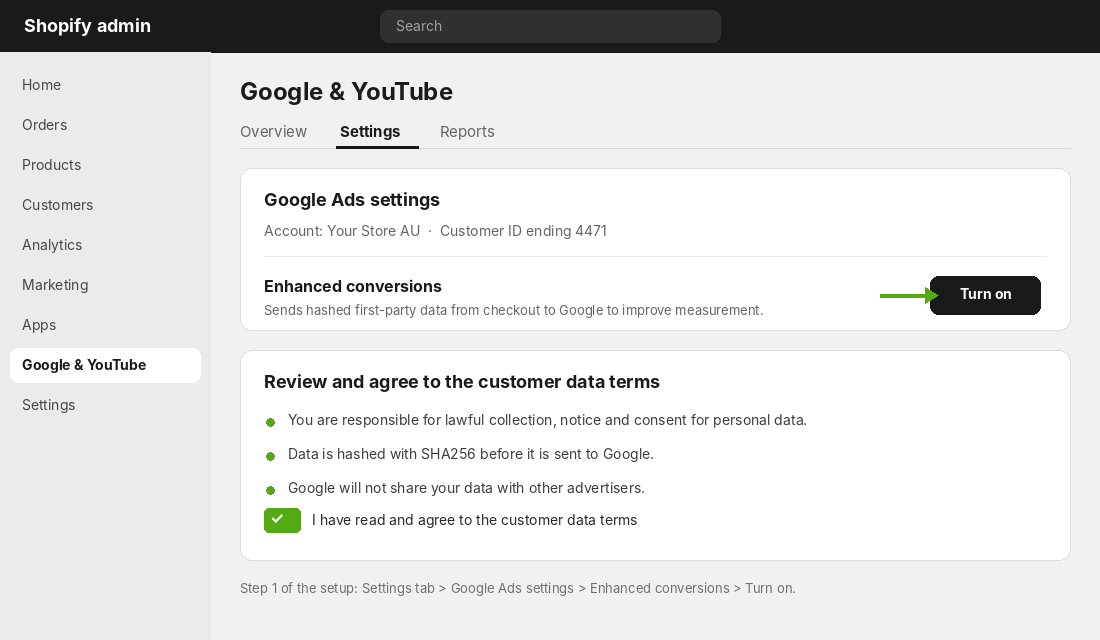
- Already finished setup? Go to the app’s Settings tab, find Google Ads settings, and click Turn on next to Enhanced conversions.
- Read and agree to the customer data terms. You cannot enable the feature without accepting them.
- Complete the setup. Google warns that if you don’t finish every step you can’t access your settings later.
Limits of the app method
- The app links one Google Ads account directly. Extra accounts, including through a manager account, need manual conversion IDs and labels.
- Floodlight conversions need manual configuration.
- If you also have conversion tags in your theme or a custom pixel, you may be double counting. Google tells you to check for duplicates and remove legacy tags.
- Do not deactivate conversion tracking in the app as a quick fix. Google warns that it affects both ads and free listings and can badly hurt campaign performance unless you replace it with manual tracking.
Method 2: Google Tag Manager or Server-Side (When You Need More Control)
Some stores outgrow the app. You might run several Ads accounts, a complex consent setup, or a server-side container. In that case, set up enhanced conversions through Google Tag Manager or the Google tag directly. Google’s help centre documents both routes, and it tells you to set up your Google tag first.
The broad steps are:
- Make sure the order confirmation event passes the customer’s email into your data layer. This is where most manual setups break, because Shopify’s checkout is locked down and the data has to come through Shopify’s customer events (Shopify’s checkout pixel sandbox) rather than the old thank-you page scripts.
- In your Google Ads conversion tag, switch on enhanced conversions and map the email, and phone and address if you have them, to the user-provided data fields.
- Standardise the data before hashing. Trim spaces and use lowercase for emails, and use international format for phone numbers. Inconsistent formatting is the number one cause of poor matching.
- Publish, then verify in Tag Assistant and Google Ads diagnostics, as covered below.
A word of caution from Australian agency Louder: monitor match rates after any front-end release, because coverage can look fine in preview and collapse in production. If your developer changes checkout customisations or your theme, re-test. If you run server-side tracking, the server-side tracking playbook explains how enhanced conversions fits alongside it.
How to Check It Is Working (The 7-Day Verification Routine)
Never trust a green tick on day one. Run this routine.
Day 0: Test a real order
- Open Google Tag Assistant (Google’s free tag debugging tool), connect it to your store, and place a test order using a real email address.
- Confirm your Google Ads conversion tag fires once, and only once, on purchase. Two fires means a duplicate tag.
- Check the tag shows user-provided data being sent with the event.
Day 1 to 3: Read diagnostics
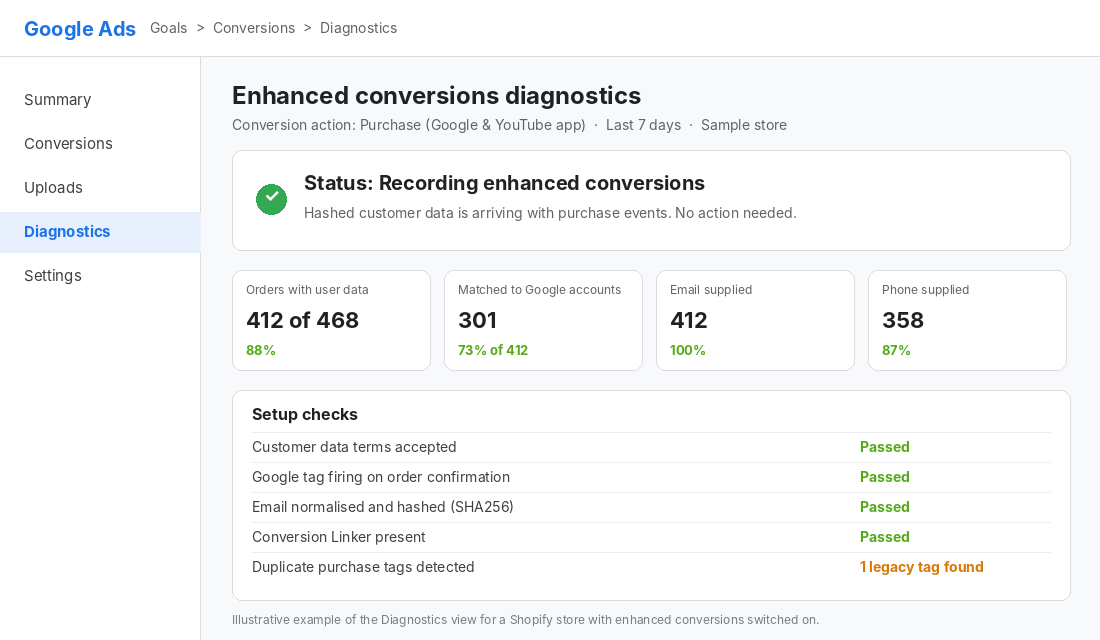
- In Google Ads, go to Goals → Conversions → Diagnostics and open your purchase conversion action.
- Look for the enhanced conversions status. You want to see it recording, not in a warning or error state.
- Check what share of conversions carry user data. If only a small share does, your email is not reaching the tag on every order path, such as Shop Pay, PayPal or express checkout.
Day 7: Compare against your baseline
- Compare Google Ads conversions to Shopify orders for the same week against your baseline.
- Look at the ratio, not the raw count. If Google was seeing 62% of orders and now sees 70% or more, it is working.
- Do not change budgets or targets this week. Give Smart Bidding time to absorb the new data.
Expect conversion reporting to settle over a few weeks, not days. InfoTrust notes that model and attribution improvements can take up to a month to show in reports and bidding, so judge it over four weeks, not four days.
The Australian Privacy Bit You Can’t Skip
Hashing is not a free pass. Hashed email is still data that lets a platform recognise a person, and Australian regulators have been clear that identifiability is broader than a name.
On 11 June 2026 the Privacy Commissioner found that Medmate Australia and Monash IVF breached the Privacy Act through their tracking pixels. The decisions turned on three things: collecting sensitive information without consent (APP 3.3), failing to give proper notice (APP 5.1), and using the data for retargeting without consent (APP 7.1). Those cases involved health providers, and a health provider’s website visits are far more sensitive than a candle store’s. But the Commissioner’s reasoning matters to every store:
- You are responsible for the pixel. Law firm commentary on the decisions says a business that controls how a pixel is set up is treated as collecting the data, even if the platform holds it.
- A generic cookie banner may not be enough. Medmate’s pop-up that only mentioned cookies was rejected for sensitive information. Say you use tracking pixels, name the purposes (advertising and retargeting), and say the data goes to platforms like Google and Meta.
- Notice belongs on entry. The advice from commentators is a banner or notice when the visitor arrives, not only a privacy policy page.
- Think about what your products reveal. If you sell health, medical, pregnancy or mental health products, a purchase can imply sensitive information. Get proper advice before sending any customer data to ad platforms.
Google’s own setup guide for the Shopify app says the same thing in plainer language: get consent for collecting, sharing and using personal data where the law requires it, and tell people what you collect. Here is a practical minimum for an Australian store:
- Update your privacy policy to mention email hashing and sharing with Google for ad measurement.
- Use a consent banner that names tracking technologies and advertising platforms, and wire it to Shopify’s customer privacy settings so tags respect the choice.
- Only send what you need. Email alone is enough for most stores. Don’t add phone and address just because you can.
- If you sell anything health-adjacent, speak to a privacy lawyer before turning this on. I’m not a lawyer, and this is general information, not legal advice.
Common Mistakes That Quietly Kill Match Rates
- Double counting from two purchase tags. The app and a leftover theme snippet both fire. Reported conversions look amazing and ROAS is fiction. Audit with Tag Assistant.
- Switching it on but leaving the conversion as Secondary. Bidding ignores it, so you get better reporting and no bidding benefit.
- Importing conversions from Google Analytics. Google states enhanced conversions don’t work with conversions imported from Google Analytics goals. You need a native Google Ads conversion action.
- Missing email on express checkouts. Test Shop Pay, Apple Pay and PayPal paths separately. Your diagnostics will show the gap if you look.
- Judging results in a week. Smart Bidding needs time. Fix the setup, then leave it alone.
- Changing too many things at once. If you rebuild campaigns the same week, you will never know what worked.
The Compound Effect: Why Clean Signal Beats a Bigger Budget
Enhanced conversions looks like a small technical task. It is actually the first link in a chain. Cleaner conversion data means Smart Bidding finds buyers more accurately. Better bidding means a lower cost per sale at the same spend. A lower cost per sale means you can raise your Google Ads budget with confidence instead of crossing your fingers.
It also feeds the next layer. Once your conversions are accurate, your first-party audiences work better, your reporting stops arguing with Shopify, and your weekly review takes ten minutes instead of an hour of spreadsheet detective work. Most stores pour money into creative and bids while the measurement underneath is leaking. Fix the foundation and every dollar after it works harder.
Your 10-Point Enhanced Conversions Launch Checklist
Copy this into your project notes and tick it off.
- Decide your single conversion source (Shopify app or manual tag).
- Confirm Admin access on the Google Ads account.
- Record a 28-day baseline: Shopify orders vs Google Ads conversions.
- Update the privacy policy and consent banner for tracking and ad platforms.
- Remove duplicate or legacy purchase tags from the theme and custom pixels.
- Turn on enhanced conversions and accept the customer data terms.
- Confirm the purchase conversion action is set to Primary.
- Test a real order in Google Tag Assistant: one fire, user data present.
- Check Diagnostics on days 1 to 3, including express checkout paths.
- Compare against baseline on day 7, then again at week 4, before changing budgets.
Where to Go From Here
Switch on enhanced conversions this week, run the verification routine, and then leave your bids alone for a month. The stores that win with Google Ads are rarely the ones with the cleverest campaign structure. They are the ones whose data is honest.
Inside eCommerce Circle, measurement and tracking is one of the core pillars we work on with every member, because every other decision depends on it. If you want to see exactly where your store is being capped, take the free More Orders Scorecard. It takes two minutes and shows you which of the 10 P’s to fix first.