You are spending real money on Google. Maybe $5k a month, maybe $50k. Performance Max is running, the dashboard shows impressions, and yet the return never quite gets where you want it. So you do what most Aussie founders do: you tweak the budget, you fiddle with the target ROAS, you blame the algorithm. None of it moves the needle for long.
What’s in This Article
Here is the uncomfortable truth. Google does not sell your products. Your product feed does. Every Shopping ad, every Performance Max listing, every free listing in the Shopping tab is built from the data in your Merchant Center feed. If that feed is thin, mislabelled, or half-disapproved, you are asking the smartest ad system on the planet to sell a product it cannot properly read.
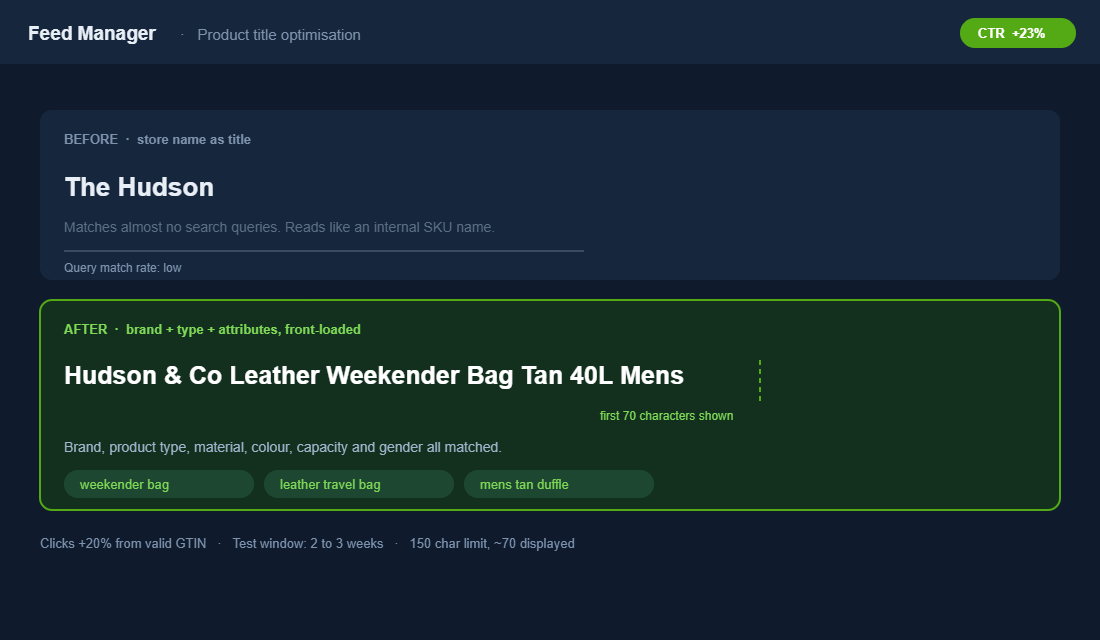
This is the lever almost nobody pulls. One case study found that simply front-loading the right keywords in product titles lifted click-through rate by 23%. Adding correct GTINs alone can increase clicks by around 20%. Those are not campaign settings. Those are feed fixes, and they compound on every dollar you already spend. This playbook is the 5-lever system we walk through with members to turn a neglected feed into the highest-leverage asset in their Google account.
Why Your Feed Is the Real Campaign (Not Your Budget)
Here is how most founders think about Google: campaign first, feed second. They obsess over bidding strategy and budget caps, and treat the product feed as a one-time setup that Shopify handles automatically. That order is backwards.
Performance Max and Standard Shopping are matching engines. They read your product data, decide which search queries your product is relevant for, and rank you against competitors selling the same thing. The feed is the input. The campaign is just the delivery mechanism. A brilliant campaign on top of a broken feed is a Ferrari with the handbrake on.
The data on feed quality is brutal. Around 7% of Google Shopping feeds get rejected outright due to major data errors, and roughly 5.53% of individual products are disapproved purely because of incorrect GTIN values. Shipping-related issues alone account for nearly 23.49% of all feed rejections. Repeated GTIN errors across just 30% of your catalogue can trigger an account-level warning that suppresses your entire feed. Most founders have no idea any of this is happening, because the campaign dashboard says “active” while a quarter of the catalogue silently sits in the dark.
The reader who wins on Google is not the one with the biggest budget. It is the one whose feed gives the algorithm the cleanest, richest, most query-matched product data to work with. That is what these five levers build.
Lever 1: Title Architecture (Front-Load How Aussies Actually Search)
Your product title is the single most important field in the entire feed. It is the text Google matches against search queries, and it is the text shoppers scan before they click. Get it right and you widen your reach and your CTR at the same time. Get it wrong and no bid adjustment in the world will save you.
The problem is that most Shopify titles are written for your website, not for search. “The Hudson” tells a shopper on your PDP everything they need to know. On Google it tells the algorithm nothing. Nobody searches “the Hudson”. They search “men’s leather weekender bag tan”.
Google allows up to 150 characters in a title, but only the first ~70 characters typically display. That front half is prime real estate. The structure that consistently wins follows a logical order:
- Brand + Product Type + Key Attributes first. “July Carry On Suitcase Hard Shell Aluminium Black 35L” beats “July Carry On” every time.
- Match the language of the query. If Aussies search “activewear leggings high waisted”, use those exact words, not your internal name “The Power Tight”.
- Add the attributes that drive long-tail matches. Size, colour, material, capacity, model. These pull in lower-competition, higher-intent searches.
- Do not keyword stuff. Cramming repeats makes you look spammy, hurts CTR, and Google may flag the title. Natural and descriptive wins.
This is where your store data and your feed data meet. The same discipline that makes a strong product page makes a strong feed title: clarity, specificity, and the customer’s own words. If your product naming is vague, fix it at the source. Our product description playbook walks through the language research that feeds straight into better titles.
Lever 2: Fix the Data That Gets You Disapproved
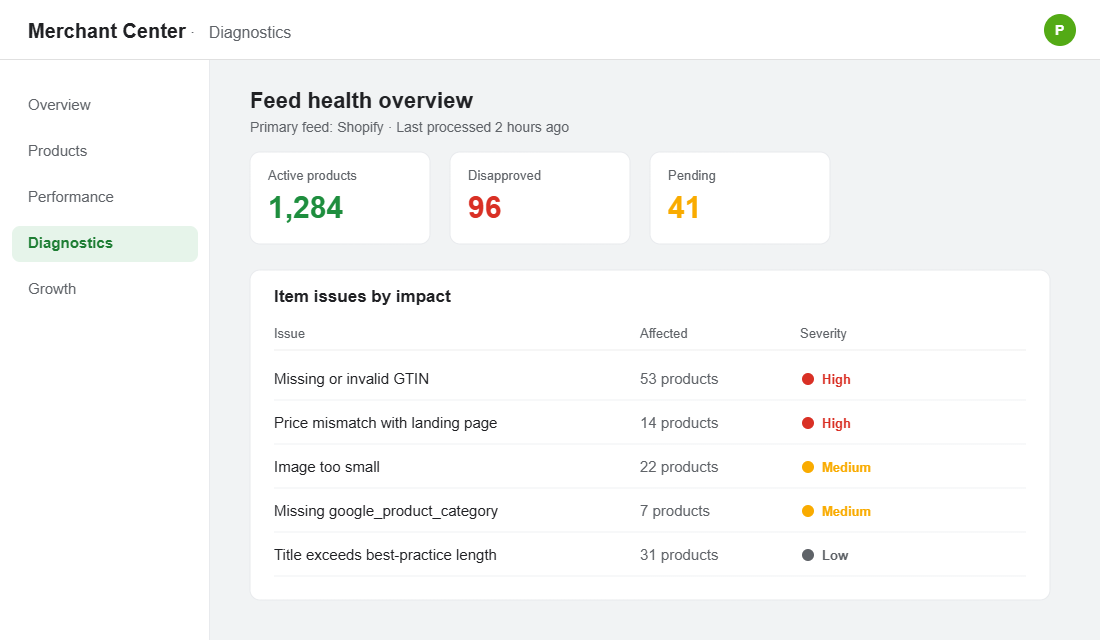
Disapprovals are revenue leaks you cannot see from the campaign view. A disapproved product does not show, does not click, does not sell, and quietly drags down your account health. Yet most stores have never opened the Diagnostics tab in Merchant Center to check.
The most common offenders are predictable, which is good news because it means they are fixable in an afternoon:
- Missing or invalid GTINs. These are the barcodes (often the manufacturer’s UPC or EAN) that tell Google exactly which product you are selling. Correct GTINs can lift clicks by around 20% because Google can match you to richer product listings and reviews. If you make your own products and have no GTIN, set the “identifier exists” attribute to no rather than faking one.
- Wrong Google product category. Picking the wrong category from Google’s taxonomy quietly limits where you show. “Apparel > Activewear” is not the same as “Apparel > Shirts & Tops”.
- Missing variant attributes. Colour, size, age group, and gender are required for many categories. Leave them blank and you lose long-tail matches and risk disapproval.
- Conflicting data between feed and website. If your feed says $89 and your live page says $79, Google flags the mismatch and can disapprove the product. This is the number one silent killer after a sale ends.
The fix is a habit, not a one-off. Open Merchant Center Diagnostics once a week, sort by impact, and clear the high-severity issues first. A clean feed is not a flex. It is the baseline that lets every other lever work.
Lever 3: Structure the Feed for Profit, Not Just Clicks
This is the lever that separates the operators from the dabblers. Most feeds treat every product as equal. They are not. Some products carry 70% margin, some carry 20%. Some are loss leaders, some are your cash cows. If Google does not know the difference, it spends your budget like it does not matter, because to the algorithm it does not.
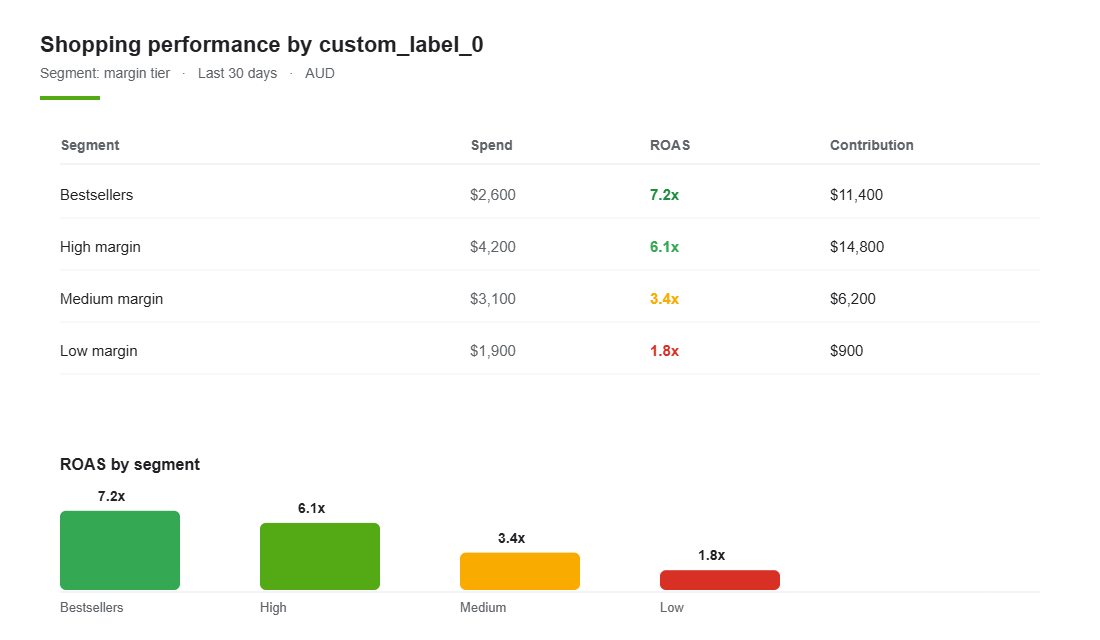
Custom labels are how you teach the algorithm what matters. They are five free attributes (custom_label_0 through custom_label_4) you can populate with whatever segmentation drives your decisions. The smart ones for an Aussie DTC brand look like this:
- Margin tier. Tag products high, medium, or low margin so you can bid harder on the ones that actually make money.
- Bestseller status. Flag your proven winners so you can split them into their own campaign with a more aggressive target ROAS.
- Price band. A $200 product and a $25 product should rarely share a budget or a target.
- Stock cover. Tag low-stock lines so you can pull back spend before you sell out and waste clicks.
- Seasonality. Flag summer or winter ranges so you can scale them in and out without rebuilding campaigns.
Once those labels exist, you can carve your Shopping and Performance Max campaigns by what they do to your bank account, not just by collection. This is exactly the thinking behind profitable scaling: spend follows contribution, not vanity clicks. If you have not nailed how you measure true profitability across channels yet, start with our blended ROAS playbook before you scale a dollar.
Lever 4: Images and Price, the Two Silent CTR Killers
Shopping is a visual, comparison-driven format. Your listing sits in a grid next to five competitors selling something almost identical. Two things decide whether the click comes to you: the image and the price. Both live in your feed, and both are routinely ignored.
On images, the rules are simple but most stores break them. Use a clean, high-resolution main image on a white or neutral background, fill the frame, and avoid logos, watermarks, or promotional text overlaid on the image. Google can disapprove products for promotional overlays, and a busy image loses the grid against a clean competitor. The image that converts on your homepage is not always the image that wins in a Shopping grid.
On price, you cannot hide. Google shows your price next to everyone else’s, so price competitiveness is effectively a ranking factor for clicks. You do not have to be the cheapest, but you do need to know where you sit. If you are 30% above the market on a commodity product, no title fix will rescue the CTR. This is where margin discipline and merchandising meet your ad strategy. Lead Shopping with products where you can compete on price and still protect contribution, and use bundles or higher-value lines where the comparison is less direct.
One more Aussie-specific point: get your shipping and GST settings right in Merchant Center. Shipping issues drive nearly a quarter of all feed rejections. Show accurate AUD pricing inclusive of GST and realistic delivery, because a shopper who clicks expecting free shipping and hits a $15 surprise at checkout is a wasted click you paid for.
Lever 5: Feed Rules and Supplemental Feeds (Automate at Scale)
Editing 800 product titles by hand in Shopify is not a strategy, it is a punishment. The operators who keep a feed sharp use feed rules and supplemental feeds to apply changes at scale without touching the underlying products. This is how you turn a one-off cleanup into a system.
Feed rules let you transform data on the way to Google. You can prepend your brand to every title, map your product types to Google categories, append colour and size from your variant data, or exclude out-of-stock lines automatically. Supplemental feeds let you layer extra data (like your custom labels from Lever 3) on top of your primary feed using a simple spreadsheet keyed by product ID.
Here is a concrete setup using the free Google & YouTube channel that most Shopify stores already have, plus Merchant Center feed rules:
- Step 1. Install the Google & YouTube sales channel in Shopify and connect it to your Merchant Center account so your catalogue syncs automatically.
- Step 2. In Merchant Center, open Products, then Feeds, and select your primary Shopify feed.
- Step 3. Under Feed rules, create a rule that sets the title to a combination of brand, product type, and key variant attributes (the Lever 1 structure).
- Step 4. Add a rule mapping your Shopify product type to the correct Google product category so you stop relying on Google’s guess.
- Step 5. Create a supplemental feed (a Google Sheet) with two columns to start: id and custom_label_0. Populate custom_label_0 with your margin tier, then link it to the primary feed.
- Step 6. Reprocess the feed, check Diagnostics for new errors, and confirm the changes pulled through to your products.
As your catalogue grows past a few hundred SKUs, a dedicated feed tool like DataFeedWatch, Feedonomics, or a Shopify-native app such as Simprosys Feed for Google Shopping makes title rules, supplemental data, and multi-channel feeds far easier to manage. The principle stays the same: edit the feed, not the products.
The Compound Effect: Why These Five Levers Stack
None of these levers is a silver bullet on its own. Together they change the economics of your entire Google account, because they all feed the same machine.
Cleaner titles (Lever 1) widen the queries you match and lift CTR. Fixing disapprovals (Lever 2) brings your dark inventory back online so more of your catalogue can actually compete. Profit-based structure (Lever 3) points spend at the products that pay you. Better images and sharper pricing (Lever 4) win the click once you are in the grid. Feed rules (Lever 5) let you hold all of that in place at scale. Each lever raises the ceiling for the next.
This matters most for Performance Max, which is almost entirely feed-driven. PMax has very few manual controls, so the feed is your steering wheel. A founder who optimises the feed is effectively optimising the campaign Google will not let them touch directly. If you are running or planning PMax, pair this with our Performance Max playbook so the campaign structure matches the feed you have just sharpened.
Your 30-Minute Feed Audit (Run This Today)
You do not need to rebuild everything this week. You need to find where the money is leaking. Block out 30 minutes and run this audit across your feed:
- Diagnostics check (5 min). Open Merchant Center Diagnostics. Note your number of disapproved and warning products. Anything over a few percent of your catalogue is a priority.
- Title spot-check (10 min). Pull your top 10 revenue products. Does each title lead with brand, product type, and key attributes in the first 70 characters? Mark the ones that read like internal names.
- GTIN check (5 min). Confirm your top sellers have valid GTINs. If you manufacture your own, confirm “identifier exists” is set to no.
- Price and image scan (5 min). Search three of your hero products on Google Shopping. How does your price and image look against competitors in the grid? Be honest.
- Custom label gap (5 min). Open your feed. Are any custom labels populated? If not, that is your single biggest untapped lever for profit-based bidding.
Whatever the audit surfaces first is your starting point. Most founders find the wins in the same order: disapprovals, then titles, then custom labels. Fix them in that sequence and you will feel the difference in your ROAS before you change a single bid.
The Bottom Line
Google is not a budget game. It is a data game. The brands quietly winning on Shopping and Performance Max are not outspending you, they are out-feeding you. They have decided that the product feed is a living asset worth maintaining every week, not a setup task they did once and forgot.
Pull these five levers in order: titles, disapprovals, profit structure, images and price, then feed rules to lock it in. You will spend the same money and get more back, because for the first time the algorithm can actually read what you are selling.
Inside eCommerce Circle, the product feed is one of the core levers we work on with every member running paid Google. If you want a second set of eyes on yours before you scale your next dollar, let’s talk.
Related reading: setting up your Google Shopping product feed.