Most Shopify owners meet Shopify Magic the same way. They spot a small sparkle icon in the product editor, click it, get a tidy paragraph back in six seconds, and publish it. Then they do it for 40 more products. A month later every page reads like it came from the same slightly cheerful stranger, and the one product that actually needed a human has the same copy as the rest.
What’s in This Article
The stores getting real value from Shopify’s built-in AI do something different. They treat it as a fast first drafter that only knows what you tell it, and they decide up front which jobs it gets and which jobs it never touches. That decision is worth more than any prompt.
This guide covers what Shopify Magic actually does in 2026, where it earns its keep, where it fails, and a simple Keep, Edit, Skip audit you can run in an afternoon. If you want the full workflow for writing descriptions with AI, read our guide to AI product descriptions for Shopify. This article is about the built-in tools themselves.
What Shopify Magic Is in 2026 (and Why the Name Is Fading)
Shopify launched Magic as a family of AI features baked into the admin, not a single product. There was no separate app, no separate bill and no login. You found it as a button inside the places you already worked: the product editor, the email editor, the image tools and the customer inbox.
Here is the part many guides miss. Shopify’s current help documentation describes the text tool differently. When you click the generate text icon, Shopify’s help centre says Sidekick writes the text for blog posts, online store pages, product descriptions, Shopify Messaging emails and theme editor content. The Magic label is giving way to Sidekick, Shopify’s general AI assistant. So when someone says “Shopify Magic” today, they usually mean the one-click writing and image tools, and the engine behind them is Sidekick.
That matters because Sidekick is growing fast. According to Retail TouchPoints’ report on Shopify’s Q2 2026 results, merchants had nearly 34 million conversations with Sidekick in the quarter, daily active merchants using it rose 3.6 times year on year, and merchants built more than 36,000 custom apps with it. Your competitors are already using it. The question is whether they are using it well.
What it costs. Nothing extra. Shopify’s Australian pricing page lists Sidekick as included on every plan, from Basic at A$42 a month on yearly billing (A$56 month to month) through to Plus. Shopify notes that some AI features vary by plan, device and language, so check what your admin shows rather than assuming.
The Five Jobs Magic Does Well
Magic is strongest on narrow, repeatable jobs where a wrong answer is cheap and easy to spot. Based on Shopify’s own documentation, these are the five worth your time.
1. First-draft product descriptions. On Shopify’s listing for the product description feature, the flow is simple: open the product form, add a few details such as keywords, pick a tone of voice (or set your own), generate as many versions as you like, then edit and publish. Shopify’s own guidance is to include at least the product name and a couple of features, and to double-check specs because AI can occasionally invent details. For a store with a few hundred SKUs and empty description fields, a draft beats a blank box. Shopify itself points out that millions of products for sale have no description at all.
2. Email subject lines and preview text. Inside Shopify Messaging you can generate subject line options from your campaign goal. This is a low-risk job: you are picking from five options, not publishing the first one. Write your own favourite alongside the AI ones and test them.
3. Image clean-up. The file editor can swap or remove backgrounds and edit a photo from a text prompt. For a supplier photo with a messy backdrop, this saves a round trip to a retoucher. Image generation is capped by plan, so you cannot run a whole catalogue through it in one afternoon.
4. Suggested replies in Shopify Inbox. It drafts a reply from your catalogue and policies, and your team sends it or edits it first. At the time of writing, Shopify’s documentation lists suggested replies as English only, so check this if you sell to non-English shoppers.
5. Fast answers inside the admin. Ask Sidekick to explain a report, build a customer segment or set up a Shopify Flow automation. Our Shopify Sidekick guide breaks down the five admin jobs worth handing over.
Where Shopify Magic Fails (and How It Costs You)
Shopify is upfront that AI outputs can contain errors and that you should review anything it creates or changes. In practice, the failures cluster into five patterns.
It only writes what it knows. Give it “merino beanie” and it will write a confident paragraph about softness and warmth. It does not know your micron count, your Melbourne dye house or your 4.8-star average, so none of that appears. The result is accurate-sounding copy with no proof in it.
It is narrow. On Shopify’s listing for the product description feature, titles, SEO titles and descriptions, alt text, collection descriptions and FAQs are listed as unsupported, as are bulk editing and saved prompt templates. That listing may change, so test it in your admin. But the pattern holds: the built-in tool drafts one box at a time. For anything at catalogue scale you need a workflow around it.
It flattens your voice. Preset tones are fine for a first pass. But if every product on your store gets the same tone setting, you end up with the same rhythm everywhere. Shoppers feel it even if they cannot name it.
It does not know your claims risk. It will happily write “eco-friendly”, “hypoallergenic” or “clinically tested” without checking whether you can back that up. Under the Australian Consumer Law, the business that publishes the claim carries the risk of misleading or deceptive conduct, not the tool.
It hides the review step. The speed is the danger. A six-second draft makes a 60-second review feel optional. It is not.
What Shoppers Actually Need From a Product Page
Before deciding how much to hand over, look at what the page has to do. A Salsify consumer survey reported by Retail TouchPoints found that 69% of shoppers named insufficient product information as their first or second reason for abandoning a product page, ahead of high prices. The same report found shoppers expect about six images per product and that most expect the page to answer eight to 13 questions. It is a 2019 study, so treat the exact figures as a direction, not a benchmark.
Baymard Institute’s testing points the same way. In its desktop study, half of users shopping for beauty products wanted ingredient information and quickly dismissed products that did not list it. Specific details close sales. Generic enthusiasm does not.
That is exactly the gap Magic cannot fill by itself. It writes the sentences. You supply the specifics.
Two Brands That Show What AI Cannot Write for You
Koala (Australia). The Koala Mattress page is a good study in specifics. It shows a 4.8 rating from 2,919 reviews, a 120-day trial, a 10-year warranty, exact dimensions (W92 x L188 x H25 cm for the single), material percentages, a bed base guide that says slats should be no more than 7.5 cm apart, and a per-night price framing. Every one of those details came from the business, not from a language model. An AI tool can tidy the paragraph around them. It cannot invent the 120-day trial or the slat spacing, and a shopper deciding on a mattress needs both.
Allbirds (US). The Men’s Wool Runner page goes the other way: short and plain. “Lightweight, bouncy, and wildly comfortable” sits above four tight feature callouts, a sizing note that it “fits true-to-size for most customers”, and care instructions saying it is machine washable. It is a reminder that good copy is often short. If you let Magic pad every description to 150 words, you are working against the brands you admire.
The lesson from both: the best parts of a product page are facts only you hold. Build the inputs first, then let the tool write around them.
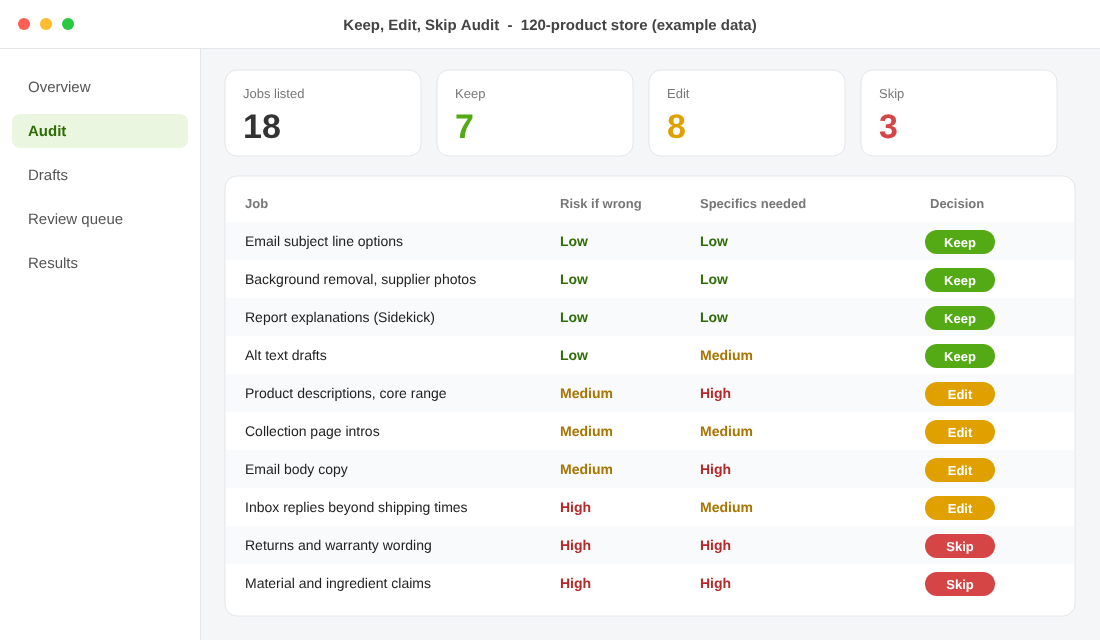
The Keep, Edit, Skip Audit
Here is the framework. List every writing and admin job you do in a month, then sort each one into one of three buckets. It takes about an hour.
- Keep (let Magic draft, you skim). Low risk, easy to check, repeated often. Subject line options, alt text drafts you review, background removal on supplier photos, internal Flow automations, report explanations.
- Edit (Magic drafts, you rewrite and fact-check). Customer-facing copy where wording affects sales. Product descriptions, collection intros, email body copy, Inbox replies on anything beyond shipping times.
- Skip (a human writes it). Anything legal, medical, safety-related or brand-defining. Warranty and returns wording, ingredient or material claims, your About page, hero product pages, anything that mentions a health benefit.
Score each job on two questions. First, how bad is it if the draft is wrong and nobody notices? Second, how much of the value comes from specifics only you know? High risk or high specifics means Edit or Skip. Low on both means Keep.
If you have already run our AI or hire test, you will recognise the logic. The audit just applies it inside Shopify’s own tools.
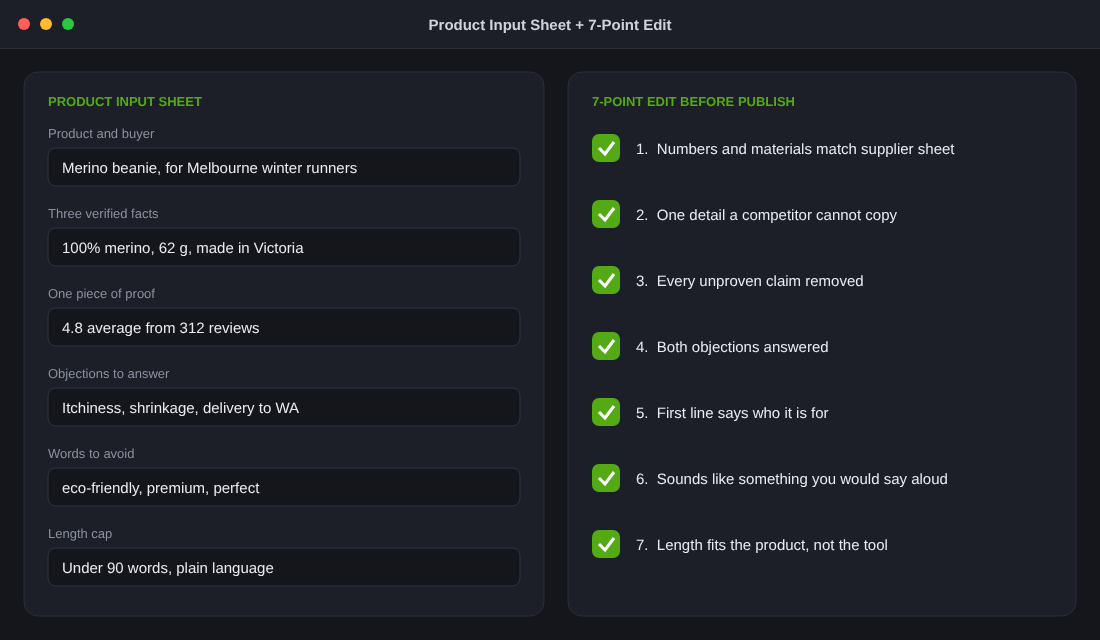
Copy-and-Paste: The Product Input Sheet
Shopify suggests giving the tool a product name and a couple of features. Give it much more. Fill in this sheet before you click the icon, then paste the key lines into the prompt box.
- Product name and who it is for: “Merino beanie, for people who run in Melbourne winters.”
- Three verified facts: material percentage, weight, where it is made. Only what you can prove.
- One piece of proof: review count and average, or a specific customer line you have permission to use.
- Two objections to answer: sizing, shrinkage, itchiness, delivery time to WA.
- Words to avoid: “eco-friendly”, “premium”, “perfect”, anything you cannot back up.
- Length cap: “Under 90 words, plain language, no exclamation marks.”
Then run this seven-point edit on every draft before it goes live:
- Does every number and material match your supplier sheet?
- Is there at least one detail a competitor could not copy?
- Have you removed every claim you cannot prove?
- Does it answer the two objections?
- Does the first line say who it is for?
- Does it sound like a sentence you would say out loud?
- Is the length right for the product, not for the tool?
How to Set It Up: Step by Step
Tool 1: Shopify’s generate text tool (included on your plan).
- In your Shopify admin, open Products and choose a product you already know well. Start with one you can fact-check from memory.
- In the description box, click the generate text icon. If you cannot see it, update the page and check your plan and language settings. Merchants have reported the icon disappearing, so a refresh or different browser is worth a try.
- Paste your input sheet details into the prompt. Choose a tone, or set your own.
- Generate three versions. Pick the best, then run the seven-point edit.
- Publish, then check the live page on your phone.
Tool 2: Shopify’s Translate & Adapt app (free, made by Shopify). Shopify’s own listing says the description generator does not support multi-language generation and points to Translate & Adapt for that. If you sell into New Zealand, the US or the UK with different spelling, install it from the Shopify App Store, add your target language under Settings, Languages, and review translated pages with a native speaker before you promote them.
Tool 3: Sidekick for the admin jobs. Use it to build a segment (for example customers who bought twice in 90 days), then check the segment against a manual filter once. If it matches, save the prompt as a reusable Skill for your team.
Stay on the Right Side of Google and the ACCC
Google does not ban AI content. Its guidance on generative AI says that using AI tools to generate many pages without adding value for users may violate its spam policy on scaled content abuse. It also warns that models predict likely word sequences, so output can be inaccurate and should be fact-checked. For ecommerce product data sent to Google, it says AI-generated titles and descriptions should be specified separately and labelled as AI-generated, which matters if you run Shopping feeds.
For a Shopify store, the practical reading is simple. Ten reviewed, specific descriptions help you. Four hundred near-identical ones published in a week do not. Roll out in batches of 10 to 20, and check how each batch performs before the next.
On the legal side, the Australian Consumer Law prohibits misleading or deceptive conduct, and the publisher is responsible for the claim. A tool that wrote “clinically proven” does not share the penalty. Anything in the Skip bucket should be written, or at least signed off, by a person.
If you use the AI replies in Inbox or a support agent, build guardrails first. Our AI support agent guide covers what to automate and what to escalate.
The Compound Effect: Small Drafting Wins Add Up
No single Magic feature changes your business. The compound effect comes from the system. Subject lines save you five minutes a campaign. Background removal saves a retoucher round trip on every supplier photo. Product drafts save 10 minutes a SKU. Sidekick saves the 20 minutes you spend building a segment by hand.
Add those up across a month and you get back several hours. But the hours only matter if you spend them on the work AI cannot do: collecting customer proof, sharpening your offer, testing a new hero page. Stores that save time and spend it on specifics pull ahead. Stores that save time and publish more generic copy fall behind, quietly, because their pages convert like everyone else’s.
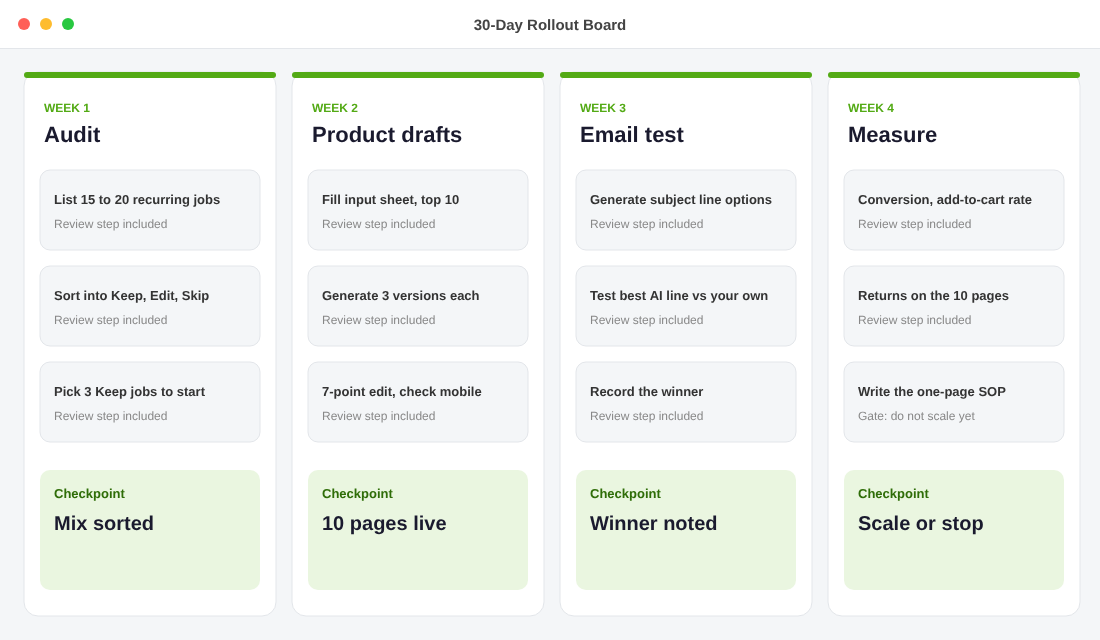
Your First 30 Days With Shopify Magic
- Week 1: Run the Keep, Edit, Skip audit. List 15 to 20 recurring jobs and sort them. Pick three Keep jobs to start.
- Week 2: Fill in the input sheet for your 10 best-selling products. Generate drafts, run the seven-point edit, publish and check on mobile.
- Week 3: Add email subject lines to one campaign. Test the best AI option against your own. Note which won.
- Week 4: Compare the 10 updated products against the previous 30 days: conversion rate, add-to-cart rate and returns. Keep what worked, drop what did not, and write the rules into a one-page SOP.
Do not roll out to the whole catalogue until week four shows a result. Ten good pages teach you more than 400 mediocre ones.
Shopify’s AI tools will keep changing names and moving around the admin. The audit, the input sheet and the edit checklist will not. Build those, and any new tool Shopify releases slots straight in.
Inside eCommerce Circle, deciding which jobs to hand to software and which to keep is one of the core habits we work on with every member. If you want to see exactly where your store is being capped, take the free More Orders Scorecard. It takes two minutes and shows you which of the 10 P’s to fix first.