Microsoft Clarity is a free tool that records how visitors use your Shopify store and shows you where they click, tap, scroll and give up. Microsoft says it is free forever, with no traffic limits and no paid tier to upgrade to. You can have it running on your store in about 10 minutes.
What’s in This Article
Most Aussie store owners find out their site has a problem the expensive way. Sales dip, someone blames the ads, and a week later you are still guessing. Meanwhile the real answer is sitting in plain sight: a shopper tapping a colour swatch that does nothing, jabbing at a discount code box that will not accept their code, or bouncing off a collection page in four seconds flat.
Clarity shows you all of it for $0. This guide walks through the setup, the five signals worth watching, what to fix first, and a 15-minute weekly routine that turns it into a habit instead of another tab you forget about. If you want the wider picture first, start with our guide to conversion rate optimisation for Shopify.
What Microsoft Clarity actually does (and what it costs)
Clarity does four jobs, and you only need to understand them at a basic level to get value from it.
- Session recordings. A replay of a real visit: where the cursor moved, what got tapped, how far the person scrolled, where they left.
- Heatmaps. Click maps and scroll maps that pile thousands of visits onto one page so patterns show up.
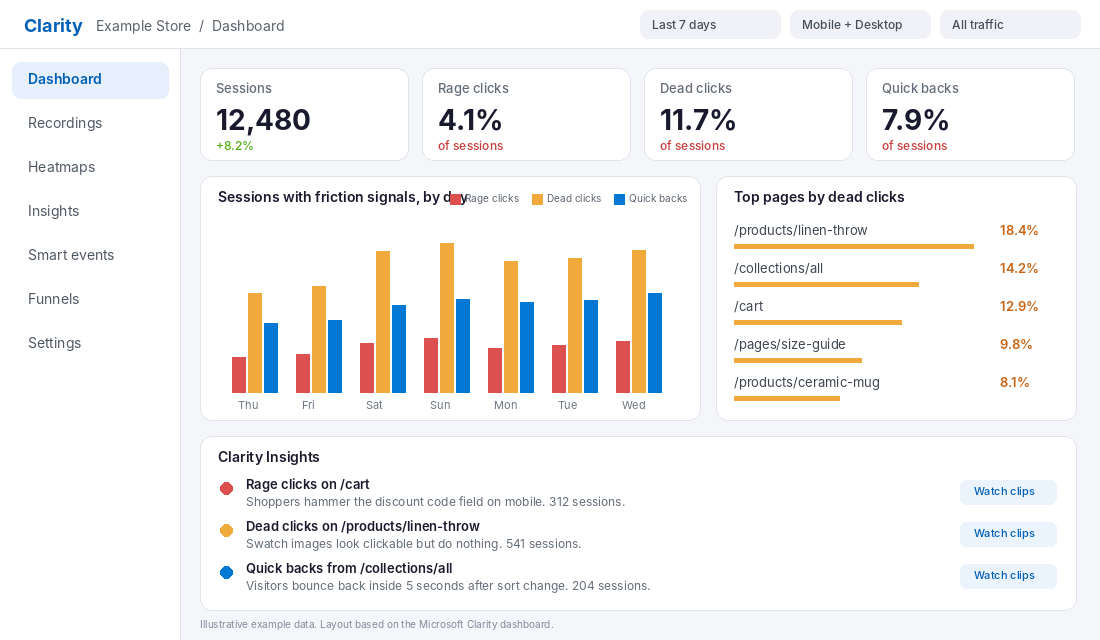
- Friction signals. Clarity automatically tags rage clicks, dead clicks, excessive scrolling, quick backs and JavaScript errors, so you do not have to watch hundreds of recordings to find the bad ones.
- Insights and funnels. A dashboard that ranks the worst pages and lets you build funnels from events like add to cart and purchase.
Now the part that matters for your cash flow. Per Microsoft’s Clarity FAQ, the service is free with no traffic limits, and it records up to 100,000 sessions per project per day. Heatmaps cap at 100,000 page views each. Unless you are doing enormous volume, you will not hit a ceiling.
Two limits are worth knowing. Recordings are kept for 30 days, although favourited recordings and a random sample are kept for up to 9 months, and heatmaps last up to 9 months. So if you find a great example of a checkout problem, favourite it or it disappears. Microsoft also says the script loads asynchronously, so visitors should notice no change in site speed.
How does this compare with paid tools like Hotjar? For a store doing under a few hundred orders a month, the free tool does the job. We cover the wider tool landscape in our Shopify heatmap playbook, but the short version is this: start free, and only pay once you hit something Clarity genuinely cannot do.
How to set up Microsoft Clarity on Shopify in 10 minutes
Shopify has an official Clarity app, and it is the cleanest route. It matters because Shopify’s checkout is locked down, and the app is how Clarity gets its e-commerce events (add to cart, begin checkout, purchase) without you touching theme code. A guide from Meetanshi dated October 2025 names it as Microsoft Clarity: AI Insights in the Shopify App Store. Names change, so search for Clarity from Microsoft itself and check the developer before you install.
Step by step
- Create your free Clarity account at clarity.microsoft.com and add a new project for your store. Use your store’s name so you can find it later.
- Install the Clarity app from the Shopify App Store and approve the data permissions it asks for.
- Turn the Clarity toggle on inside the app settings and save. If you already have a Clarity project, use the option to connect it and approve the request in your Shopify admin.
- Wait a few hours. Data does not appear instantly. If the dashboard looks empty after that, hit the refresh button in the app.
- Test it yourself. Open your store on your phone, view a product, add it to the cart, then check Clarity for your own session. Filter for your device type to find yourself.
- Add Clarity to your privacy policy (more on this below).
One warning. You will see third-party apps in the Shopify store that connect Clarity for a monthly fee, with plans starting around US$5.99 a month. They work, but you do not need to pay anyone to connect a free tool. Start with Microsoft’s own app.
Do not paste the Clarity script into your theme and forget it. It can double up with the app, and it can start recording before a visitor has made a consent choice. Pick one install method and stick with it.
Privacy first: what you must set up before you collect anything
This section is short, and it matters. Clarity records real shoppers, so handle it like you would handle any customer data.
- Masking. Clarity says input fields are masked in every mode and cannot be customised, and that masked data is not uploaded. Still, open a few recordings and confirm no names, addresses or card details appear on screen.
- Your privacy policy. Australian stores should name the tools that track visitors and explain what is collected and why. Ask your accountant or lawyer to check the wording. This is not legal advice.
- Overseas shoppers. If you sell into the UK, EU or Switzerland, Microsoft says Clarity needs explicit consent before it places cookies. Without consent, sessions fragment and full replays are not available. Use a consent banner that is built to pass the visitor’s choice through to Clarity.
- Audience. Microsoft says Clarity should not be used on sites aimed at users under 18. Kids’ products sold to parents are a grey area, so check the terms.
The 5 signals worth your time (and what each one means)
The mistake most people make is opening Clarity, watching ten random recordings, feeling vaguely informed and doing nothing. Skip the random viewing. Work through these five signals in order.
1. Rage clicks
Per Microsoft’s definitions, a rage click is flagged when a user clicks multiple times in a clustered area in rapid succession. In plain English: the shopper expected something to happen and it did not. Common culprits on Shopify stores are discount code boxes that reject valid codes, filters that do not respond on mobile, and sticky bars that cover a button.
2. Dead clicks
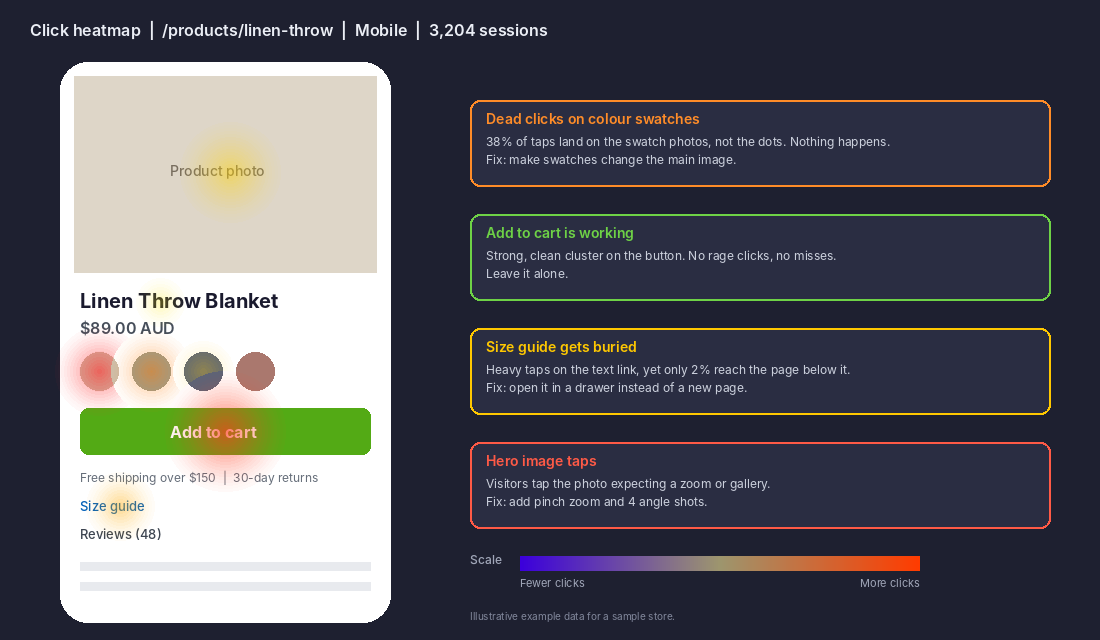
A dead click is a click where the shopper gets no feedback and nothing changes. The classic Shopify example is a colour swatch image that looks tappable but is not linked to a variant. Dead clicks are the cheapest fixes you will ever find because the shopper is telling you exactly what they want the page to do.
3. Quick backs
A quick back happens when someone clicks to a page, decides it is not what they wanted and hits back within a short window. If a collection or landing page has a lot of them, your ad or menu label is promising something the page does not deliver. Pair this with our session recording diagnostic to decide whether the problem is the message or the page.
4. Excessive scrolling
Clarity flags a session when vertical scrolling is higher than the expected average. On a product page it often means shoppers cannot find the answer to a basic question like shipping time, size or returns, so they scroll up and down hunting for it. Move that answer higher.
5. JavaScript errors
Clarity tags the session whenever a click triggers a JavaScript error. These are the nastiest problems because you cannot see them yourself. A broken add to cart button on one phone model can quietly cost you orders for weeks. Filter by device and browser and look for patterns.
What fixing these signals is worth: real results
Does this actually move revenue? These examples come from Clarity’s own published case studies, so treat them as vendor-reported results, not guarantees.
- Felix & Norton (Montreal). The team used heatmaps and recordings to find a checkout design problem. Checkout abandonment during peak gifting season fell 25% and conversion rate rose 38%.
- A natural supplements brand (client of agency B Interactive). With recordings, scroll maps and heatmaps, they lifted conversion from 1.13% to 1.9% over six months and average order value from $115 to $140, a 21.7% rise. The case study calls the conversion gain 168%, but the maths works out to about 68%.
- An unnamed ecommerce client of agency Ecommerce Boost. They used dead clicks and rage clicks to find elements shoppers thought were clickable, and reported a 19% conversion uplift five days after implementing Clarity.
Notice the pattern. None of these needed a redesign. They found specific, boring friction and fixed it.
The numbers on why shoppers leave back this up. The Baymard Institute puts the average documented cart abandonment rate at 70.22% across 50 studies. Of shoppers who abandon, 40% cite extra costs, 20% say delivery is too slow, 18% were forced to create an account and 17% said checkout was too long or complicated. Clarity cannot read minds, but recordings let you see which of these is happening on your store.
Why this matters more for Australian stores right now
The Australia Post eCommerce Report 2026 says Australians spent a record $82.6 billion online in 2025, up 14%, across 9.8 million online households. The average basket is $96, about $10 less than in 2020, and shoppers bought from an average of 16 brands. More shoppers and more brands means they compare quickly and leave quickly. The same report says 60% use social media to discover products, which means a lot of your traffic is arriving on a phone, from a feed, with no patience.
In that environment, every dead tap costs you more than it did five years ago. Smaller baskets also mean you cannot afford to waste the traffic you paid for. If your store is getting visits but not sales, our guide to what to check when your Shopify store is not getting sales shows the wider list of causes. Clarity is how you confirm which one applies to you.
Build your first funnel with smart events
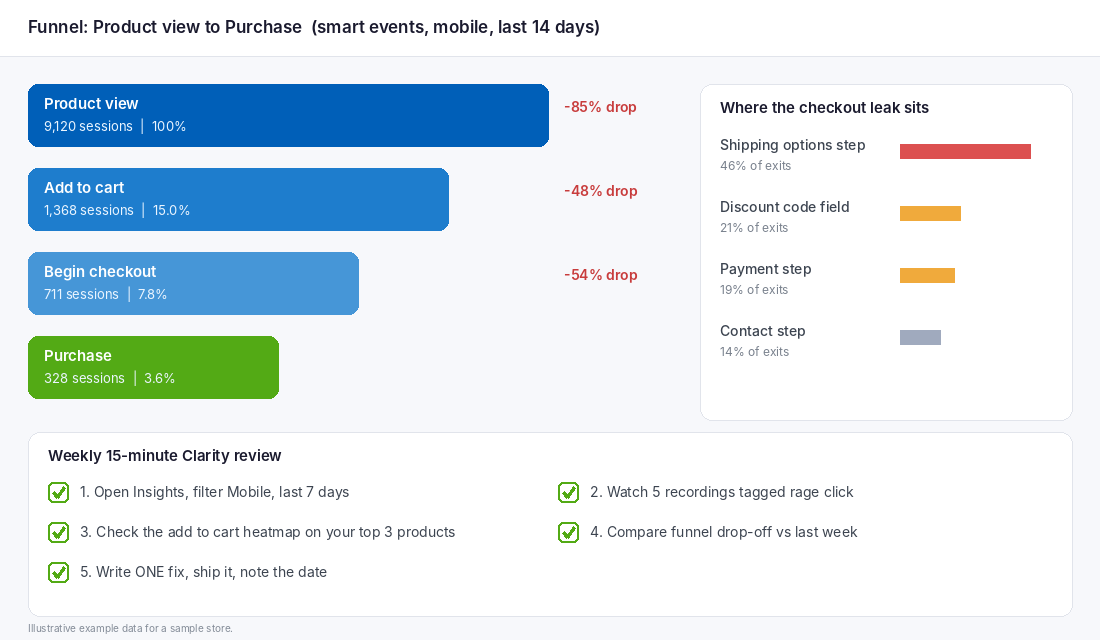
Heatmaps show you what happens on a page. Funnels show you where people disappear between pages. Once the Shopify connection is live, use Clarity’s events to build a simple funnel: product view, add to cart, begin checkout, purchase. Filter it to mobile only.
Here is how to read it. A big drop between product view and add to cart points at the product page, so go to the heatmap for your top three products. A big drop between add to cart and begin checkout points at the cart or shipping surprise. A big drop after begin checkout points at checkout friction, so watch recordings of sessions that began checkout but never purchased.
Set the dates to the last 14 days so you have enough sessions to trust the numbers. As a rough guide, do not make decisions from a page that has fewer than a few hundred sessions, because a handful of odd visits can look like a pattern.
The 15-minute weekly Clarity review (copy this)
Tools do not improve stores. Routines do. Put this on the calendar for the same time every week, ideally Monday morning before you plan the week.
- Minute 0 to 3: Open Insights. Filter to mobile and the last 7 days. Note the percentage of sessions with rage clicks, dead clicks and quick backs. Write the three numbers down. This is your baseline.
- Minute 3 to 8: Watch five recordings. Filter for rage clicks first, then dead clicks. Five recordings is enough. Write down what the shopper was trying to do, not what you think they should have done.
- Minute 8 to 11: Check one heatmap. Open the click map for your best-selling product page. Look for taps on things that are not buttons.
- Minute 11 to 13: Check the funnel. Compare drop-off to last week. Did anything shift after your last change?
- Minute 13 to 15: Pick ONE fix. Write it down with the page, the problem, the fix and the date you will ship it. Then do it. One fix a week is 52 fixes a year.
A starter fix list to steal. If you are not sure where to begin, these are the most common fixes we see on Shopify stores:
- Make colour swatches and variant images actually change the product photo.
- Show shipping cost and delivery time on the product page, before the cart.
- Move the returns summary above the fold on mobile.
- Test your discount code box on a real phone with a real code.
- Open size guides in a drawer instead of sending shoppers to a new page.
- Turn off or delay any pop-up that covers the add to cart button.
Common mistakes that waste your Clarity data
- Watching recordings with no question in mind. Start each session with one thing you want to learn.
- Changing five things at once. You will not know which one worked. One change, then measure.
- Ignoring desktop versus mobile. Always split them. Most stores have a different problem on each.
- Treating a heatmap as proof. A heatmap tells you where people click, not why. Confirm with recordings or a quick customer survey.
- Forgetting to favourite recordings. Standard recordings are kept for 30 days, so save the ones you want to show your team or developer.
- Not telling your developer the exact page and device. A clip showing the problem beats a paragraph describing it.
How it all fits together
Clarity on its own is a free toy. Clarity inside a weekly routine becomes a conversion engine. The dashboard tells you which pages hurt. Recordings tell you why. Heatmaps tell you how widespread it is. The funnel tells you whether the fix worked. Then the weekly review forces you to ship one change at a time.
That is the compound effect. A store that fixes one friction point a week, using free data, does not need a miracle campaign to grow. Each fix lifts conversion slightly, and a higher conversion rate makes every ad dollar, every email and every organic visit worth more. For the broader system around this, see our 10-point Shopify CRO audit.
Inside eCommerce Circle, measuring what shoppers actually do is one of the core habits we build with members under Performance. If you want to see exactly where your store is being capped, take the free More Orders Scorecard. It takes two minutes and shows you which of the 10 P’s to fix first.
Sources: Microsoft Clarity FAQ, Clarity semantic metrics, Felix & Norton case study, B Interactive case study, Ecommerce Boost case study, Baymard Institute, Australia Post eCommerce Report 2026. Screenshots use illustrative sample data. Check the Shopify App Store for the current Clarity app name and settings before installing.