A slow Shopify store is fixed in five steps: measure the real numbers, audit your apps, fix the hero image, stop the layout jumping, and cut the third-party scripts you cannot justify. Most stores can pass Core Web Vitals in two weeks without rebuilding the theme, and that matters because speed and sales move together.
Here is where most Aussie founders go wrong. They run one test, see a speed score of 38, install a “speed booster” app, and wonder why nothing improves. The booster is one more script on a page that already has too many. You have treated a number instead of the cause.
Shopify’s own analysis of actively selling stores, published in April 2026, found conversion tends to be about 3.5% lower for every 100 milliseconds slower a store’s Largest Contentful Paint (LCP) is. That is correlation, not proof, but it matches what we see when we audit stores inside eCommerce Circle. The fix is rarely clever. It is usually a bloated app stack and a hero image that loads late.
What a Slow Shopify Store Actually Costs You
Speed is not a vanity metric. It is a conversion lever you can price. Shopify’s April 2026 analysis found stores with a 2.5 second LCP report roughly 30% lower conversion than stores with a 1.5 second LCP. The same analysis found conversion drops about 1.5% for every 32 milliseconds slower a store responds to a tap or click.
Be honest about the limits. Shopify noted that mature stores see roughly a third of the percentage impact that smaller stores do, and the data shows correlation rather than direct cause. Faster stores may also have better themes and tighter ranges. So treat 3.5% per 100 milliseconds as the ceiling, not the promise.
Here is a conservative way to price it for your own store. Take the one-third figure, which is about 1.2% per 100 milliseconds. A store turning over $50,000 a month with a mobile LCP of 3.2 seconds that gets down to 2.5 seconds has removed 700 milliseconds. That is roughly 8% more conversion, or about $4,000 a month, from a job that takes a fortnight. Run your own numbers before you decide this is not worth the time.
A bigger independent study points the same way. Deloitte and Google tracked 37 European and American brand sites across more than 30 million sessions and found that a 0.1 second mobile speed improvement lifted retail conversion by 8.4% (Milliseconds Make Millions, web.dev). The improvement had to hold across every page of the journey, not just the homepage.
Speed also feeds your traffic costs. Slow landing pages make every paid click more expensive because fewer visitors convert. If your Meta or Google spend is climbing, check the page before you blame the ad. Our post on cart abandonment rate in Australia covers what happens once those visitors reach checkout.
The Three Numbers That Define Fast (and the Targets)
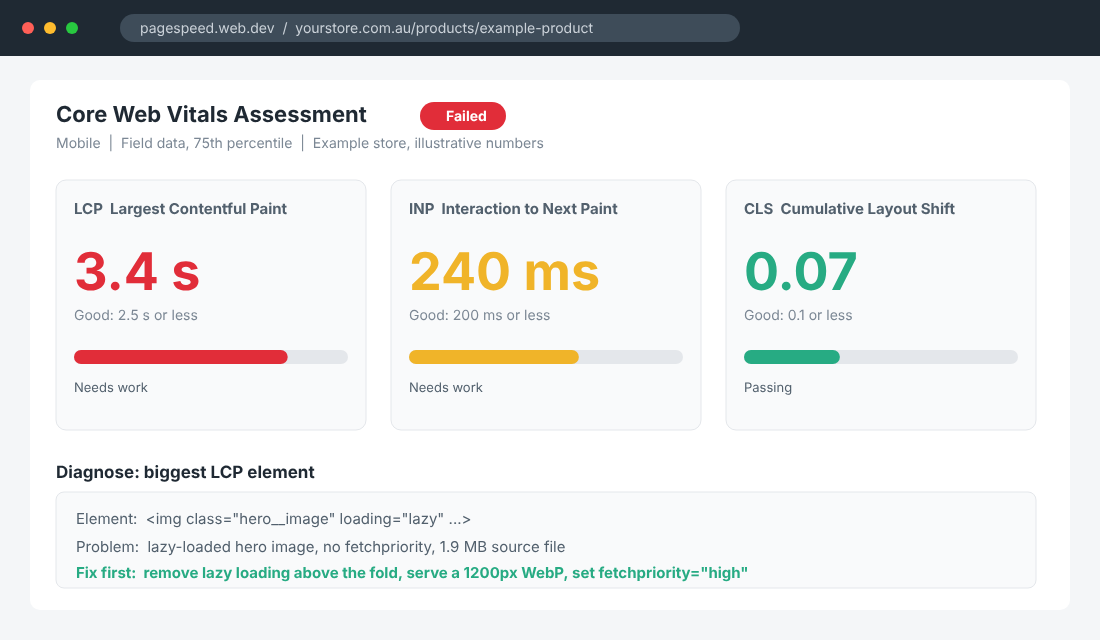
Google judges real-world speed with three Core Web Vitals. Each is measured at the 75th percentile of real visits, which means three in four visitors need a good experience for the page to pass (web.dev Core Web Vitals).
| Metric | What it measures | Good target | Usual Shopify culprit |
|---|---|---|---|
| LCP (Largest Contentful Paint) | How fast the biggest visible element appears | 2.5 seconds or less | Lazy-loaded or oversized hero image |
| INP (Interaction to Next Paint) | How fast the page reacts to a tap or click | 200 milliseconds or less | Too many app scripts running at once |
| CLS (Cumulative Layout Shift) | How much the layout jumps while loading | 0.1 or less | Images without dimensions, late-loading banners |
You are not behind because you chose Shopify. Shopify’s analysis says nearly 80% of Shopify stores pass all three thresholds, while across the whole web only 48% of sites pass on mobile (Web Almanac 2025, as summarised by Fudge). The platform is fast. Your theme settings, images and apps are what make it slow.
One more point most guides skip. Your customers are on phones. If you only test on your laptop over office wifi, you are testing a store nobody shops on. Always check the mobile tab first.
Step 1: Measure the Real Numbers (Not Just One Score)
Open two free tools and look at different things. The first is the Shopify online store speed report. Shopify tests your home page, your highest-traffic collection page and your highest-traffic product page, then combines each page’s Google Lighthouse score into one overall score and compares you with similar stores (Shopify developer changelog). You will find it in your Shopify admin under Reports.
The second is Google PageSpeed Insights at pagespeed.web.dev. This is where you get the detail:
- Paste your three money pages one at a time. Use the home page, your best-selling collection and your best-selling product URL.
- Switch to the mobile tab. This is where most Australian orders start.
- Read field data first. If the page has enough real visits, Google shows real-user Core Web Vitals. These are the numbers that count.
- Then read lab data. The lab test is a simulation. Use it to find the cause, not to judge the result.
- Open the diagnostics for the LCP element. It names the exact image or text block slowing you down.
- Screenshot the results. You need a before so you can prove the after.
Do not chase a perfect 100. Shopify itself says you should not expect a perfect score once you add apps and images, and scores fluctuate from day to day. Your target is passing the three Core Web Vitals on mobile, which is a pass or fail grade, not a score.
Write down five numbers before you touch anything: mobile LCP, INP and CLS for your product page, your overall Shopify speed score, and your mobile conversion rate. If you are not sure what a healthy conversion rate looks like, our Shopify conversion rate benchmarks give you a baseline.
Step 2: Audit Every App (This Is Where Most Speed Goes)
Apps are the biggest drag on most Shopify stores, and they hide. Each one can add JavaScript and CSS to your pages, and the cost compounds. Uninstalling an app does not always remove its code either, so leftover snippets in your theme can keep loading for apps you stopped paying for months ago.
Run the audit in one sitting. List every installed app, then answer four questions for each one:
- What does it do for the customer? If you cannot answer in a sentence, it is a candidate to remove.
- Where does it load? Reviews belong on product pages. A reviews script on your checkout-bound cart page is waste.
- How heavy is it? Test the page in PageSpeed Insights, remove the app on a duplicate theme, and test again. The difference is its real cost.
- What revenue can you tie to it? If you cannot show a number, it has not earned its place.
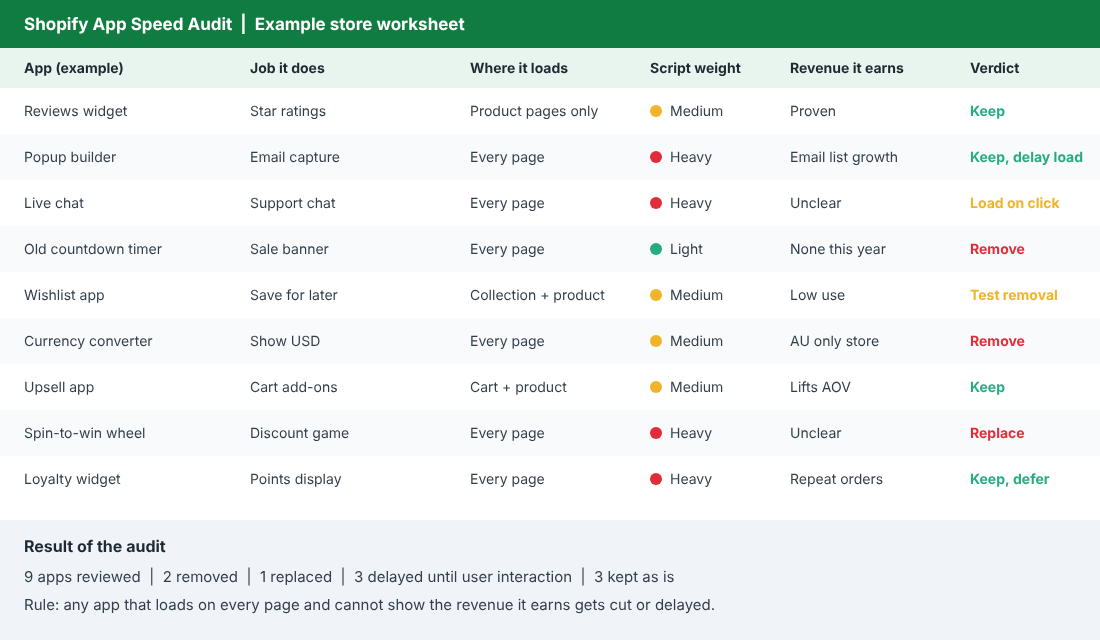
The usual offenders are popup builders, live chat, spin-to-win wheels, countdown timers, currency converters on stores that only ship in Australia, and wishlist apps almost nobody uses. You do not have to delete everything. A popup that builds your email list is worth its weight. The fix is often to delay it. Many apps can load after the first interaction, so they stop competing with your hero image for bandwidth.
Once a quarter, run the app permission audit alongside this speed audit. The same apps that slow your store often hold permissions they no longer need, so you clean up speed and security in one pass.
Step 3: Fix the Hero Image (The Biggest LCP Win)
On most product and home pages, the LCP element is an image. If that image loads late, your LCP fails, however fast everything else is. Three mistakes cause nearly every case we see.
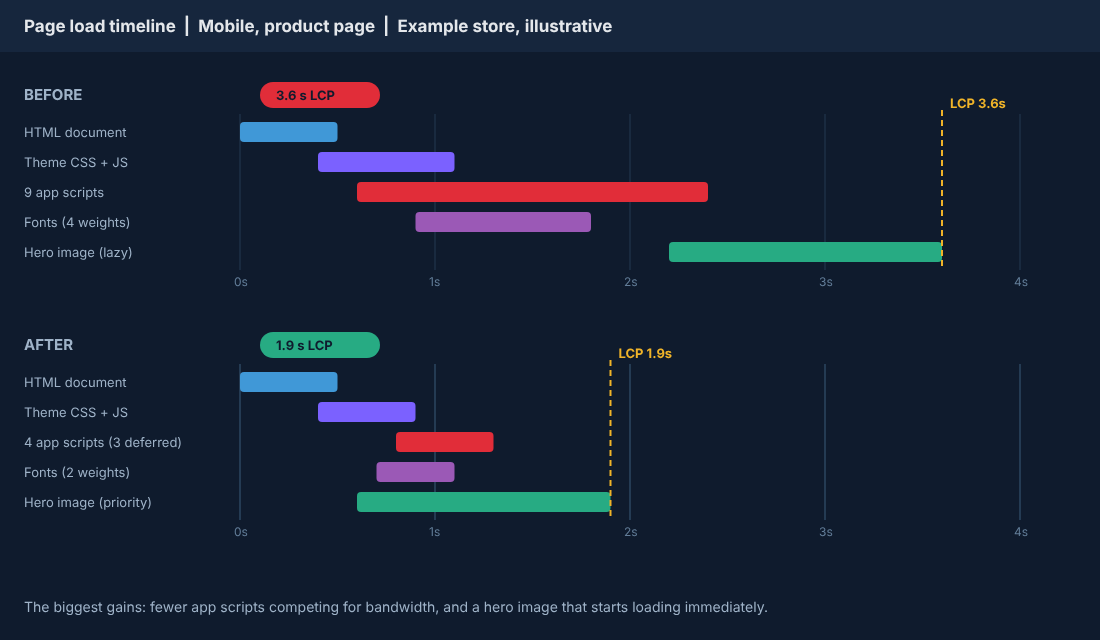
- The hero is lazy-loaded. Lazy loading is great for images below the fold. On the top image it delays the one thing the browser should fetch first. Remove it from anything visible on first load.
- The image is a CSS background. Browsers discover background images late. Use a real image element so it is found immediately.
- The file is too big. A 1.9 MB photo on a phone screen is waste. Resize to the display width, compress, and serve a modern format. Shopify’s image CDN handles formats and sizing when you use its image tags.
Then tell the browser what matters. Adding fetchpriority="high" to the hero image signals it should be fetched ahead of everything else. Add explicit width and height so the browser reserves space, which also protects your CLS.
Carpe, a Shopify store, did exactly this kind of work. The team found its hero image loading late because of incorrect lazy loading and background images used for above-the-fold graphics. They fixed both and stopped Liquid loops serialising all products and variants into JSON. LCP improved 52% at the 75th percentile, conversion rose 5% and revenue rose 15% (Shopify Performance). No new platform and no rebuild.
Do the same on your top three pages first. Do not spend a week compressing images on a page that gets 40 visits a month.
Step 4: Stop the Page Jumping (Layout Shift and Theme Code)
You know the feeling. You go to tap a button and the page jumps, so you hit something else. That is layout shift, and it is usually caused by elements that load without reserved space: images with no dimensions, announcement bars that appear late, carousels that rearrange when their script wakes up, and review stars that pop in after the page settles.
The fix is to give every one of those a fixed size in the CSS before it loads. Sunday Citizen, another Shopify brand, did this. Their navigation bar was the biggest contributor to layout shift, so they sized it properly in CSS, reserved space for the product gallery and styled carousels so their position was stable before the scripts ran. They also cut requests before first paint from 25 to 6. The result was a 61% improvement in CLS at the 75th percentile, conversion up more than 6%, and bounce rate down 4% (Shopify Performance).
Now the theme itself. A modern Online Store 2.0 theme is fast out of the box. Problems arrive when years of edits, old snippets and abandoned sections pile up. If your theme is several versions behind, an upgrade can do more than any amount of tweaking. Our guide on how to upgrade your Shopify theme without losing sales walks through it safely on a duplicate.
Be wary of the headless pitch. Some agencies will sell you a rebuild for speed. Most stores do not need it. Work through the headless Shopify test before you spend five figures fixing a problem a hero image and three apps would have solved.
Step 5: Cut the Third-Party Scripts You Cannot Justify
Not everything slowing you down is an app. Tracking pixels, tag managers, heatmaps, review loaders and chat widgets all add scripts. The median mobile page already ships about 570 KB of JavaScript (Web Almanac 2024, as cited by Fudge), and every extra tag eats into the time your visitor waits to tap anything. That feeds directly into your INP score.
Work through this list:
- Audit your tag manager. Old Google Ads tags, retired Meta pixels and test tags from a past agency are common. Remove anything you cannot name the owner of.
- Keep one heatmap tool, not three. Run it for a month, fix what you learn, then switch it off or sample a fraction of visits.
- Trim your fonts. Four font weights is usually two too many. Two weights, preloaded, is plenty for most brands.
- Put video behind a click. An autoplaying video background is the quickest way to wreck mobile LCP. Show a still image and load the video when someone taps.
- Check embedded widgets. Instagram feeds, review carousels and social walls are each a stack of requests for a small trust benefit.
Do not remove tracking you rely on to run ads. Cut what is duplicated or dead, then move the rest to load after the main content. If you are not sure which pixels are live, work through a conversion audit first so you know what each tool is earning.
Lock In the Gains Before Black Friday
Black Friday falls on 27 November this year, so speed work needs a calendar. Do not install new apps in the final fortnight. Every new script is a risk when traffic is at its highest. Use this timeline:
| When | What to do |
|---|---|
| Now to 13 Nov | Run the five steps. Record before and after numbers for your top three pages. |
| 14 to 19 Nov | Retest on mobile. Fix anything that regressed. Test checkout on a real phone over mobile data. |
| 20 Nov | Speed freeze. No new apps, no theme edits, no new tracking tags. |
| 21 to 26 Nov | Only essential content changes. Watch your mobile numbers daily. |
| 27 Nov to 1 Dec | Monitor. Do not touch the theme. Fix only what is clearly broken. |
Our Black Friday Australia 2026 guide lists the other deadlines that land in the same fortnight, so you can fit the freeze around them.
How the Five Steps Compound
Each step helps alone. Together they stack. Fewer apps free up bandwidth, so the hero image loads sooner. A faster hero fixes LCP. Reserved space fixes layout shift. Fewer scripts running means taps respond faster, which lifts INP. The result is a store that passes all three Core Web Vitals, which is the position Shopify’s own data links to higher conversion.
This is also why the order matters. Measuring first stops you fixing the wrong thing. Auditing apps second removes the biggest cause. Images third is the fastest single win. Layout and scripts come last because they are fine-tuning. Skip the order and you end up like the founder with the speed booster app: busy, but no faster.
It also compounds with everything else you do. Better ad traffic lands on pages that convert. Email clicks arrive at pages that load. Your site search responds instantly. Speed does not replace good offers, but it stops a slow page from wasting them.
Your Shopify Speed Checklist (Copy This)
Save this and work through it on one afternoon. Tick each line and record the before and after.
- Record mobile LCP, INP and CLS for your home, top collection and top product pages.
- Record your Shopify speed score and mobile conversion rate.
- List every installed app and note where each loads.
- Remove any app with no clear job or no revenue you can point to.
- Delay popups, chat and loyalty widgets until first interaction.
- Check your theme code for leftover snippets from deleted apps.
- Remove lazy loading from every above-the-fold image.
- Replace CSS background hero images with real image tags.
- Resize and compress the hero image, and add fetchpriority high.
- Add width and height to every image and reserve space for banners.
- Clean your tag manager and cut fonts to two weights.
- Replace autoplay video with a still image that loads the video on tap.
- Retest on mobile and compare with your before numbers.
- Set a speed freeze date before every major sale.
The reality is that most speed problems are decisions, not mysteries. Someone added an app, nobody removed it, and the page got heavier every month. Fix the decisions and the score follows.
Inside eCommerce Circle, store speed sits under Platform, one of the core pillars we work on with every member. If you want to see exactly where your store is being capped, take the free More Orders Scorecard. It takes two minutes and shows you which of the 10 P’s to fix first.