The short answer: for most Shopify stores, the cleanest Google Ads conversion tracking is the Google & YouTube app with one Primary purchase action, enhanced conversions switched on, and every old tag removed. Install it, test one real order, and check that Google Ads counts that order once.
What’s in This Article
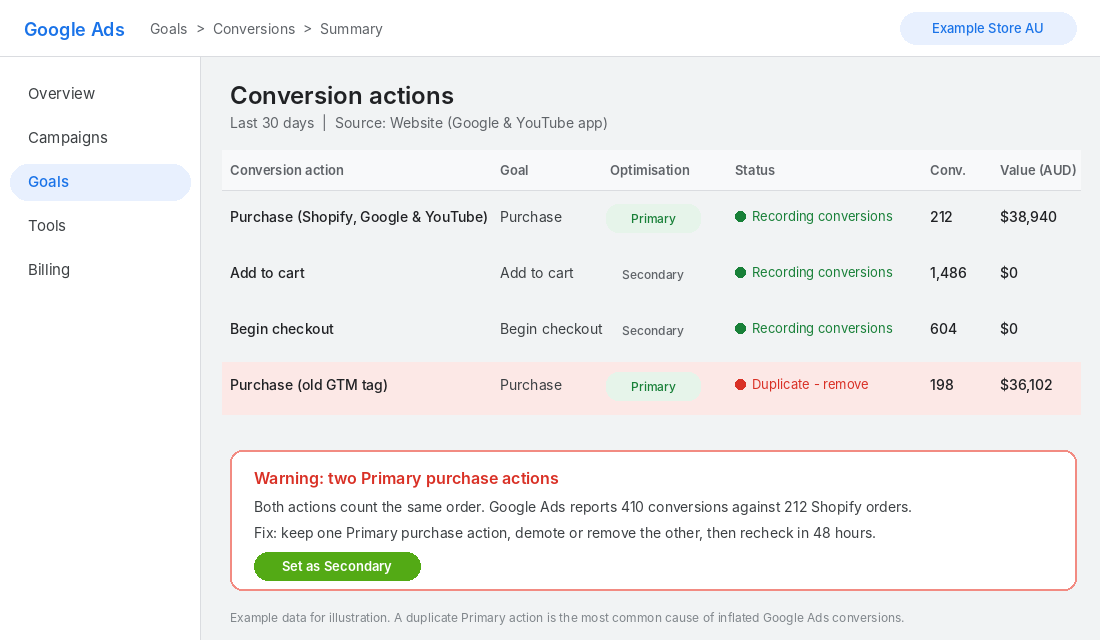
Most Australian stores skip the last part. They add tracking, see conversions appear, and move on. Then six months later Google Ads says 410 sales while Shopify says 212, and the bidding algorithm has been chasing phantom orders the whole time.
Google Ads can only optimise toward what you tell it happened. Feed it duplicates, missing orders or the wrong values, and Smart Bidding does exactly what you asked, just on bad data. This guide walks you through the setup, the checks that matter, and the five faults we find in most stores we audit.
What Google Ads conversion tracking actually needs from Shopify
Google Ads needs three things from your store: a signal that a purchase happened, the order value in AUD, and a unique order ID so the same sale is never counted twice. Everything else is a bonus.
Shopify now sends these through its Web Pixel system, not through code pasted into your theme. That matters because an old gtag snippet in theme.liquid or a tag in Google Tag Manager does not know the new pixel exists. Run both and you get double counting.
You have three ways to get tracking running:
| Method | Best for | Main risk |
|---|---|---|
| Google & YouTube app (Shopify) | Most stores. Fastest setup, passes order ID and value automatically | Only one Google Ads account can be linked directly |
| Google Tag Manager | Stores with a developer, or several ad accounts under an MCC | Easy to double up with the app |
| GA4 import into Google Ads | Stores that already trust their GA4 data | Slower to report and depends on GA4 matching Shopify |
For most stores, the app is the right call. If you run several Google Ads accounts through a manager account, Google states you will need to set the others up manually with conversion IDs and labels or Google tags.
Step by step: set up conversion tracking with the Google & YouTube app
This follows the process in Google’s own help documentation for the app. Block out about 30 minutes, and do it before you change any campaign budgets.
- Check your access. You need Shopify admin access and admin access to the Google Ads account. If you only have standard access, the account will not appear in the list.
- Install the Google & YouTube app from the Shopify App Store and sign in with the Google account that owns your Ads account.
- Connect Google Ads. Pick your account. If you skip this step you will have to configure tracking manually.
- Review the measurement step. When your Ads account is linked, Google suggests purchase, add to cart and begin checkout as conversion actions. Use Manage to create a new action, pick an existing one or stop measuring an event.
- Confirm enhanced conversions. Turn them on during connection or later under Google Ads settings. You will need to agree to the customer data terms.
- Confirm the Google tags and select Complete setup. Settings stay locked until you do.
- Set purchase as the Primary conversion and mark add to cart and begin checkout as Secondary. You want Smart Bidding chasing sales, not carts.
- Remove legacy tags. Search your theme code, Google Tag Manager and any app that injects tracking. Delete old purchase tags, and if you keep GTM for other jobs make sure its Conversion Linker is the only Google tag in play.
Google also warns that deactivating conversion tracking in the app can significantly hurt campaign performance unless you have set tracking up manually, so do not switch it off to “reset” things.
Primary vs Secondary: the setting that quietly steers your bidding
A Primary conversion action feeds bidding. A Secondary one is reported but ignored when Google Ads decides how much to bid. Get this wrong and you teach the algorithm that an add to cart is worth the same as a $129 sale.
To check it, open Google Ads, go to Goals, then Conversions, then Summary. Older accounts show this under Tools & Settings, then Measurement. You should see one Primary purchase action, sourced from your website, with a status of recording conversions.
- One Primary purchase action. Retired, imported or duplicate versions should be Secondary or removed.
- Add to cart and checkout as Secondary. Useful for diagnosing funnel drop-off, harmful as a bidding target.
- GA4 purchase imported as Secondary unless GA4 is your only source. Running both as Primary double counts.
- Value passes in AUD. If your store sells in multiple currencies, confirm the value converts correctly.
This is where Target ROAS gets fragile. Google’s help page says Search and Shopping campaigns need at least 15 conversions in the past 30 days for Target ROAS, and recommends reporting conversion values for four weeks, or one to two conversion cycles, before you set a target. If your first month of data is inflated by duplicates, you set targets off numbers that were never real. Our Google Ads budget guide covers how much volume you need before bidding on ROAS makes sense.
Turn on enhanced conversions (and know what they do)
Enhanced conversions send Google hashed first-party customer data, such as email, name, address or phone, alongside the purchase. Google normalises the data, hashes it with SHA256, and matches the hashes to signed-in Google accounts that engaged with your ads. That lets it credit sales it would otherwise miss.
The results vary, and Google itself notes that actual results will vary by advertiser. A few published examples show the range:
- Globus, a Swiss department store, implemented enhanced conversions and reported measured conversions up 8%, ROAS up 66% and sales doubling over a December 2024 run of 14 to 24 December, according to its agency e-dialog.
- M and M Direct, a UK online fashion retailer, reported 3% more conversions on Search and 20% more on YouTube. Google notes the brand also used sitewide tagging, Google Analytics and Consent Mode, so the lift is not from enhanced conversions alone.
- SafetyDrink, a Thai ecommerce retailer, reported cost per conversion down 37% in one month after turning them on, per a Google case study.
Do not treat those as promises. Treat them as proof that missing data is expensive. We cover the full setup, including checking the diagnostics tab, in our enhanced conversions guide for Shopify.
The test order: prove it works before you spend another dollar
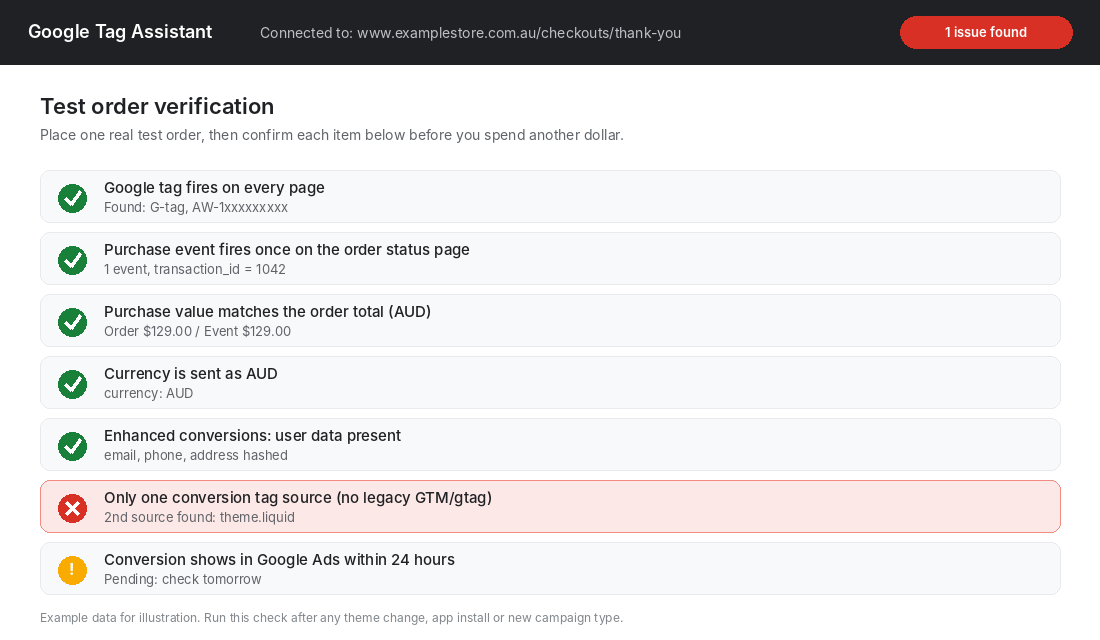
Never trust a tracking setup because the setup screen says “complete”. Place a real order and watch what happens. This takes ten minutes and saves you months of bad data.
Your tool: Google Tag Assistant
Tag Assistant is free and Google recommends it for verifying tag placement and firing. Here is how to use it on your store:
- Open Google Tag Assistant and enter your store URL. Connect it to your storefront.
- Place a test order using a real payment method, or a 100% discount code if you prefer not to pay. Refund or cancel it afterwards.
- On the order confirmation page, check that the Google tag fires and the purchase event appears once.
- Open the event details. Confirm the value matches the order total, the currency is AUD and a transaction_id is present.
- Confirm enhanced conversion user data is present (hashed email and address).
- Check Google Ads 24 to 48 hours later. The test order should appear as exactly one conversion.
If the purchase event fires twice, you have a legacy tag. If it fires zero times, the app setup was not completed or a consent banner is blocking it. If the value is wrong, check whether your theme adds shipping or tax differently to Shopify.
One Australian wrinkle: if your store uses a consent banner, check what the banner does to tags before a visitor accepts. Tracking that is blocked by default is not a bug, but it does mean reported conversions will sit below Shopify orders, and you should confirm your banner and privacy policy match what your tags actually do.
The 5 faults behind most broken Google Ads tracking on Shopify
We audit a lot of Shopify stores. One vendor claims 9 in 10 merchants have at least 3 tracking problems, and while that number comes from a company selling tracking fixes, it matches what we see in practice. Here are the faults in order of how often they cost money.
1. Two tags counting one order
A Google Ads tag in Google Tag Manager, plus one hardcoded in the theme, plus the Google & YouTube app running its own. Each fires on the thank-you page. Fix: keep one method, delete the rest, confirm with Tag Assistant that only one conversion fires.
2. Multiple Primary purchase actions
An old imported GA4 purchase sits next to the native action. Both are Primary and both count. Fix: keep one Primary purchase action and demote the rest to Secondary.
3. No transaction ID
Without a unique order ID, a customer who refreshes the thank-you page can be counted again. Shopify’s built-in integrations pass it automatically. Custom GTM setups often do not. Map the Shopify order ID to transaction_id.
4. A conversion window that does not fit your buyers
Google Ads defaults click-through conversions to a 30 day window for Search and Display, engaged-view to 3 days and view-through to 1 day. Google’s guidance is to check the time lag report and set the window at least as long as your customers take to convert. One DTC retailer found its customers converted in an average of 2.2 days, so the 30 day default was crediting Google for sales other channels probably drove. Test it by duplicating the purchase action with a 7 day click window as Secondary, run it for two weeks, and only switch if it captures the large majority of purchases.
5. Missing or mismatched product IDs for remarketing
If you run Performance Max or Shopping, the product IDs your tag sends must match the IDs in your Merchant Center feed. Shopify can use variant IDs, item IDs or SKUs, and a mismatch weakens dynamic remarketing without throwing an error.
How much gap between Google Ads and Shopify is normal?
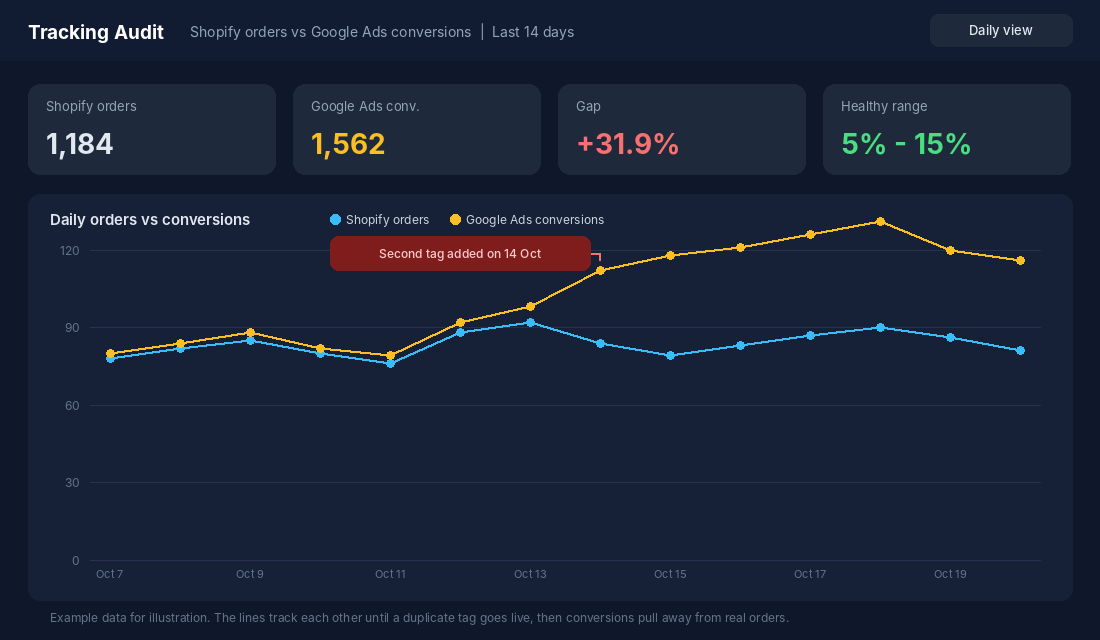
You will never get a perfect match. Google Ads attributes by ad click and Shopify counts orders, and one customer can click an ad on Monday and buy on Thursday through a different channel. Use these working ranges:
| Gap (Google Ads conversions vs Shopify orders) | What it usually means | Action |
|---|---|---|
| Within 5% to 15% | Normal attribution and timing differences | Leave it alone |
| 15% to 30% | Possible overlap, long conversion window or blocked tags | Check window and consent behaviour |
| Above 30% | Almost always duplicate tags | Run the test order and audit tags today |
| Google Ads at 1.5x to 2x Shopify | Double counting | Remove duplicate Primary actions |
| Google Ads well below Shopify | Tags blocked, tracking not completed or missing enhanced conversions | Recheck setup and consent |
Those thresholds come from a Shopify tracking app vendor, ScaleUp, so treat them as practical rules of thumb, not an official standard. They are consistent with what we see. If you are chasing “why do my numbers never match”, our GA4 setup guide explains the other half of the picture.
A simple routine: every Monday, put last week’s Shopify orders next to Google Ads conversions in a two-line sheet. Anything outside the range, investigate before you touch budgets. The Performance section of the free More Orders Scorecard checks exactly this kind of measurement gap.
What bad tracking costs: a worked example
Take the store from the first screenshot. It spends $12,000 a month on Google Ads. Two Primary purchase actions are live, so Google Ads reports 410 conversions worth $75,042.
On those numbers, cost per acquisition looks like $29 and ROAS looks like 6.25. The store owner feels great and raises the budget.
The real numbers are different. Shopify shows 212 orders worth $38,940. Real cost per acquisition is $57 and real ROAS is 3.25. If the owner’s break-even ROAS is 3.0, the account is barely profitable, not wildly so, and a budget increase pushes it into the red.
- Reported: 410 conversions, $29 CPA, 6.25 ROAS.
- Actual: 212 orders, $57 CPA, 3.25 ROAS.
- Gap: 93% more conversions reported than orders placed.
That is why we check tracking before we touch budgets, targets or creative. Every optimisation decision after it inherits the error.
Your Google Ads tracking audit checklist
Copy this into a doc and run it on your store today. It takes 20 minutes, and again after any theme change, app install or new campaign type.
- One source. Only the Google & YouTube app (or only GTM). No hardcoded gtag in theme.liquid.
- One Primary purchase action. Everything else Secondary or removed.
- Transaction ID present and unique on every order.
- Value and currency correct. AUD, matching the order total.
- Enhanced conversions on and showing as recording in diagnostics.
- Conversion window checked against your time lag report.
- Product IDs match your Merchant Center feed.
- Test order verified in Tag Assistant and in Google Ads 24 to 48 hours later.
- Weekly gap check. Shopify orders vs Google Ads conversions, inside 5% to 15%.
- Consent behaviour documented. You know what your banner blocks and when.
When to go beyond the app
The Google & YouTube app is enough for most stores under a few hundred orders a day. Consider more advanced tracking when your gap stays large after you remove duplicates, when you run several ad accounts, or when browser restrictions and ad blockers hide a large share of your traffic. That usually means server-side tagging, which we explain in our server-side tracking guide. Fix the basics first. Server-side tracking built on duplicate tags just sends the duplicates faster.
Why clean tracking compounds
Clean conversion data is not a technical nicety. It is the foundation every other Google Ads decision sits on. Smart Bidding learns from it. Budget decisions rely on it. Your ROAS target only means something if the numbers behind it are real.
Fix tracking and the rest improves together. Bidding stops chasing phantom orders. Your cost per acquisition becomes believable. You can compare Google against Meta without wondering which platform is inflating its own homework. And when you scale spend, you scale something that actually works.
Inside eCommerce Circle, measurement is one of the core pillars we work on with every member, because you cannot grow what you cannot trust. If you want to see exactly where your store is being capped, take the free More Orders Scorecard. It takes two minutes and shows you which of the 10 P’s to fix first.